Expressly
A creative journaling app designed to help you reflect on your day through drawing.
Estimated reading time: 6-7 minutes
Project duration: 3 months
Project Overview
Date
Aug 2024 - Oct 2024
Team
Praveen Kalva - Software Engineer
Rishma Balakrishnan - UX Designer
My role
User research, UI/UX design, branding
Journaling has been a timeless practice, regarded highly for its mental health benefits and capacity for self-reflection. Traditionally, journaling involves writing down one’s thoughts and experiences. However, open-ended reflection requires a lot of effort, which is what makes freeform journaling a difficult habit to maintain. For this reason, using prompts to guide reflections can help sustain a journaling habit.
Drawing, much like journaling, is also a powerful tool for self-expression and reflection. Given the benefits of both drawing and prompt-based journaling, combining these activities can create a more comprehensive daily reflection practice.
Problem Statement
How can we leverage the inherent benefits of journaling and drawing to help users easily build the habit of quick daily reflection?
Design Inspiration
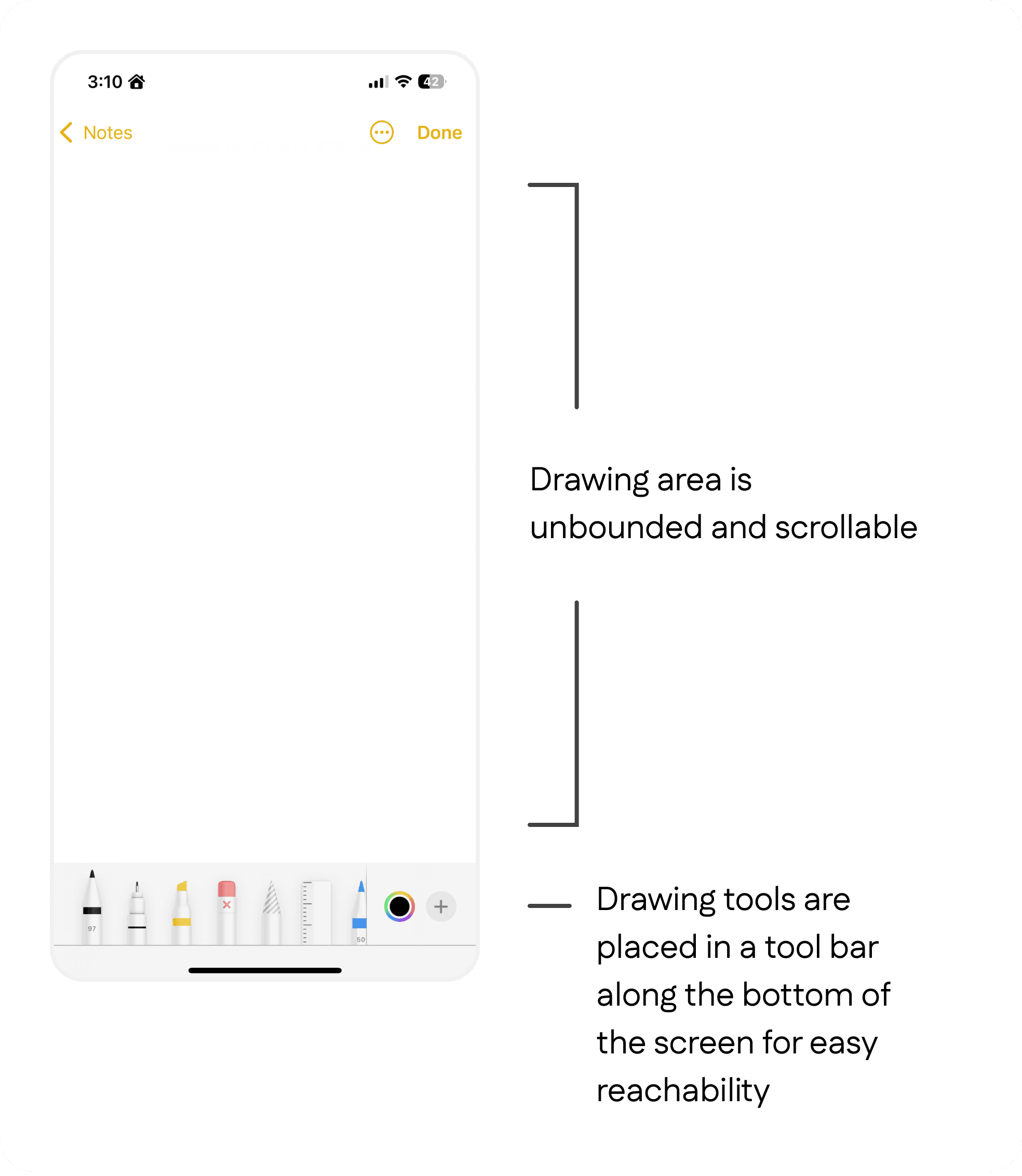
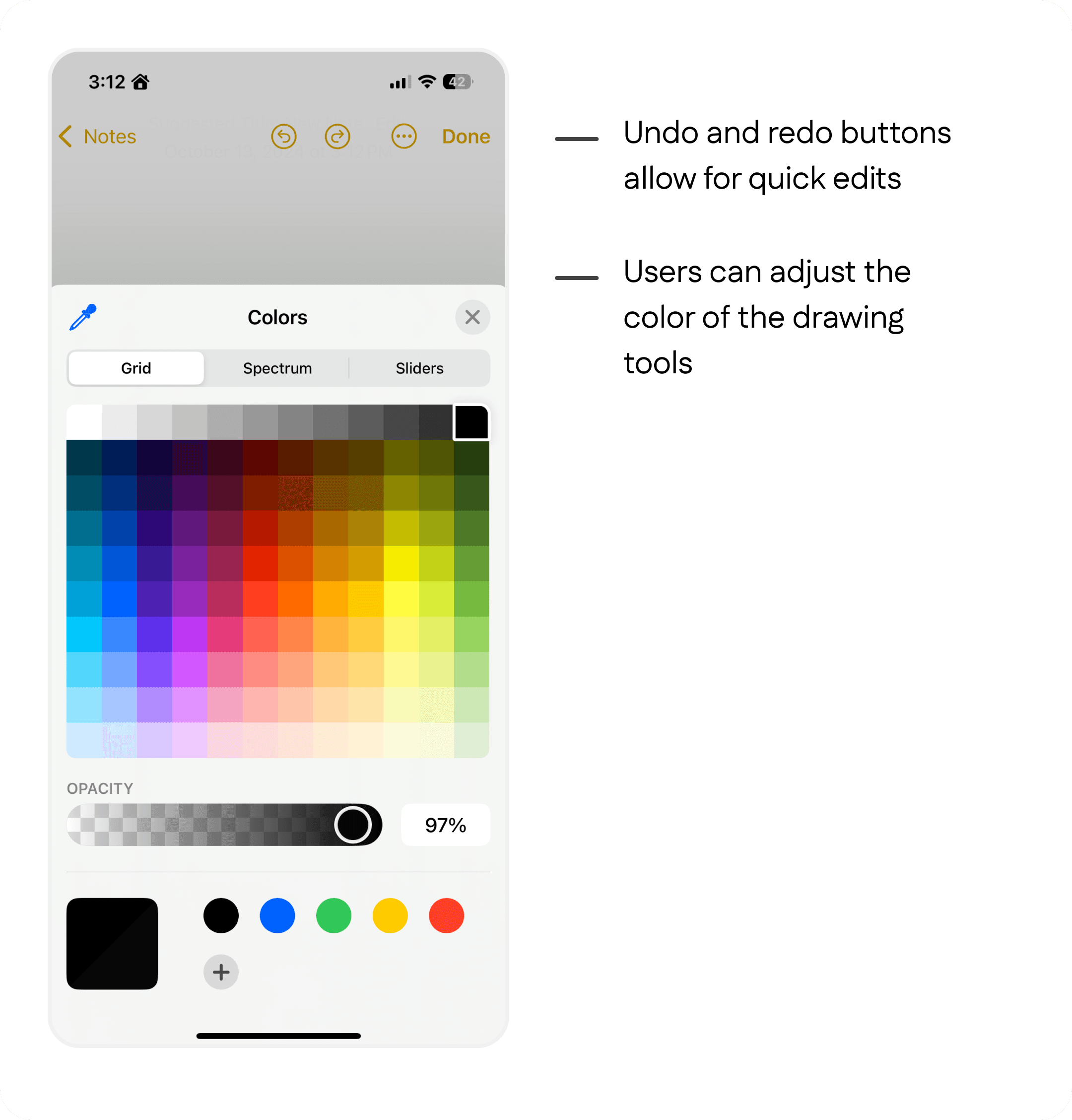
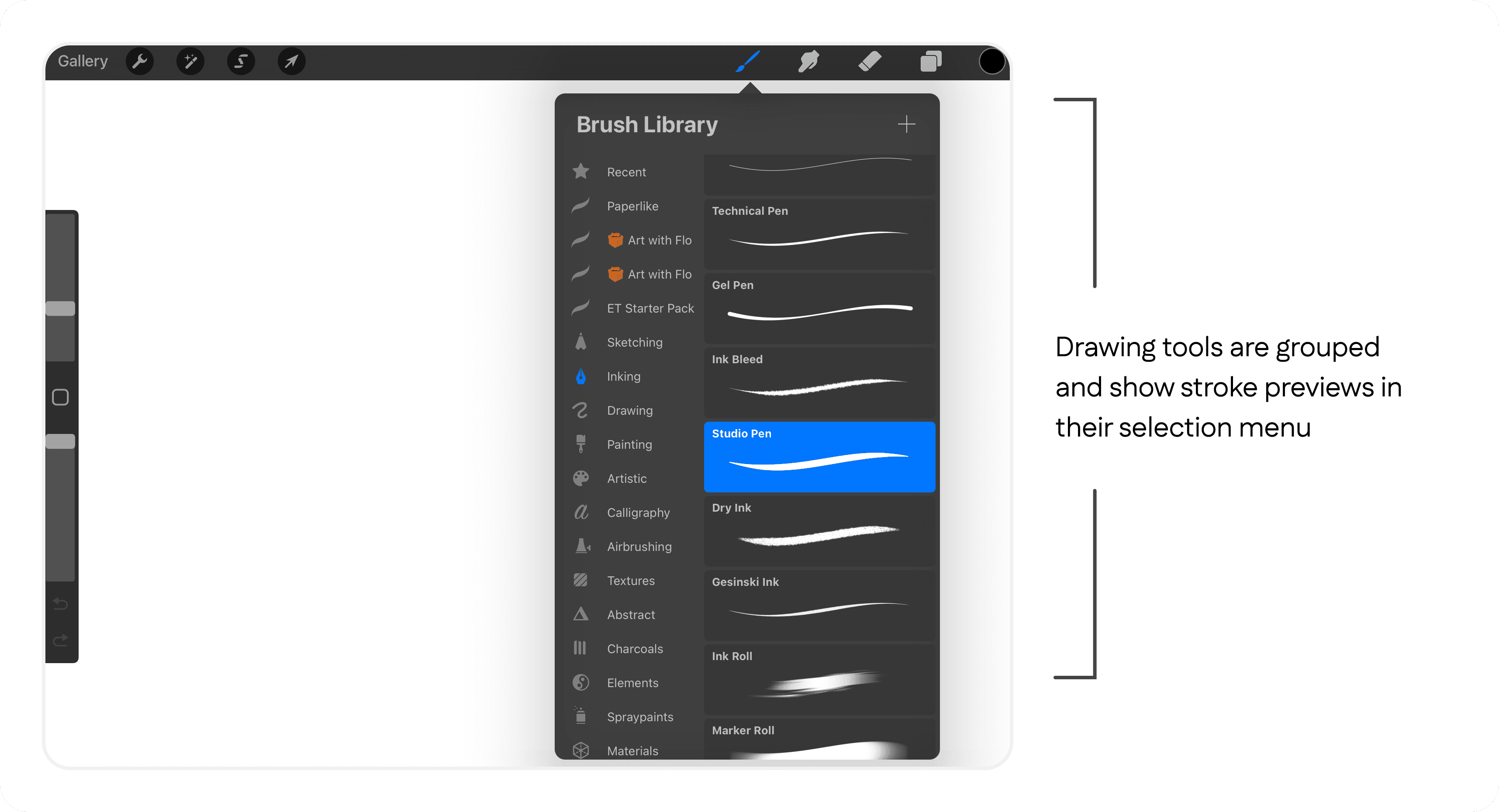
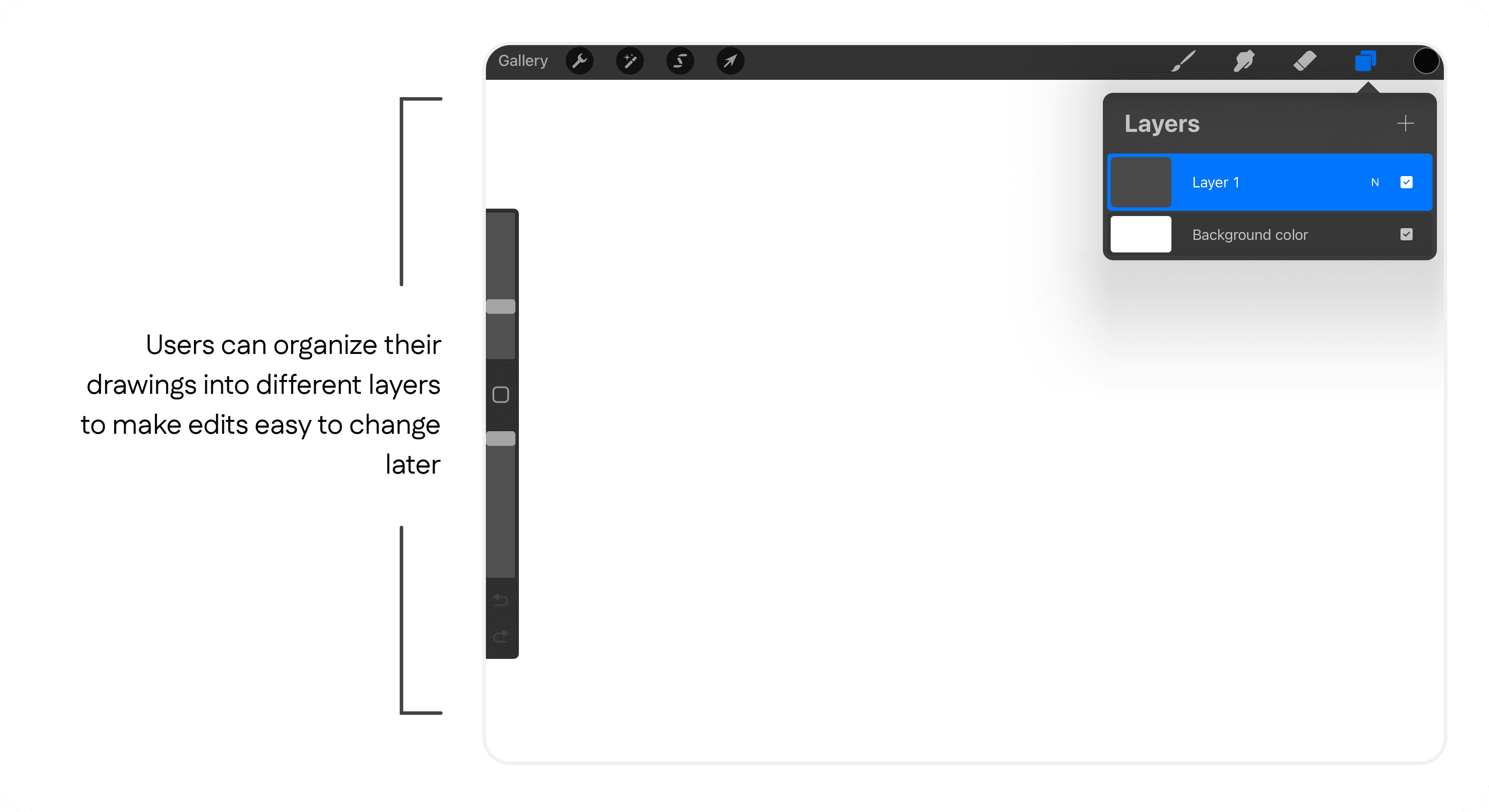
I started the design process by benchmarking popular mobile drawing apps to identify features that users are accustomed to seeing in existing drawing apps.
iOS Notes App
Procreate
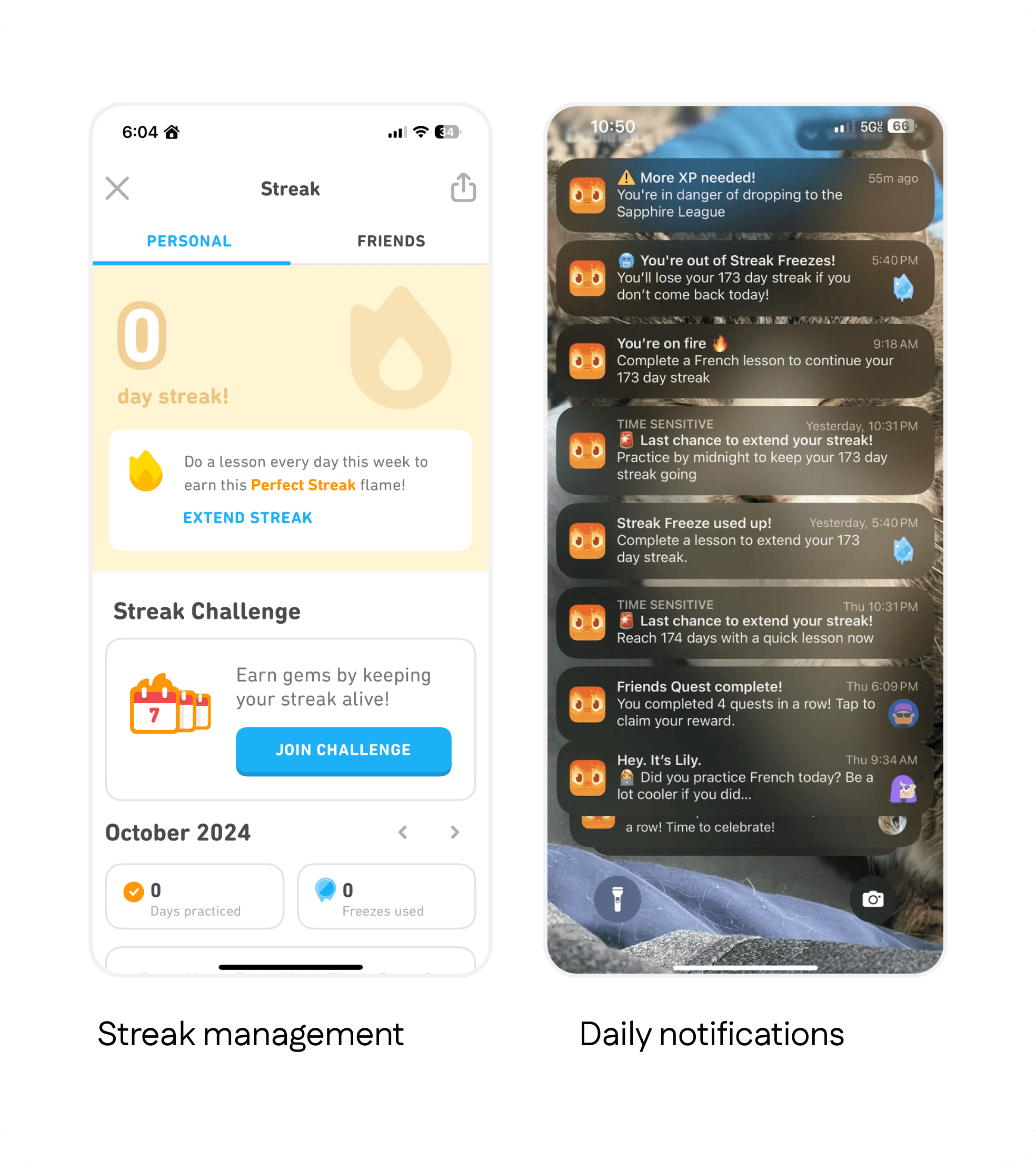
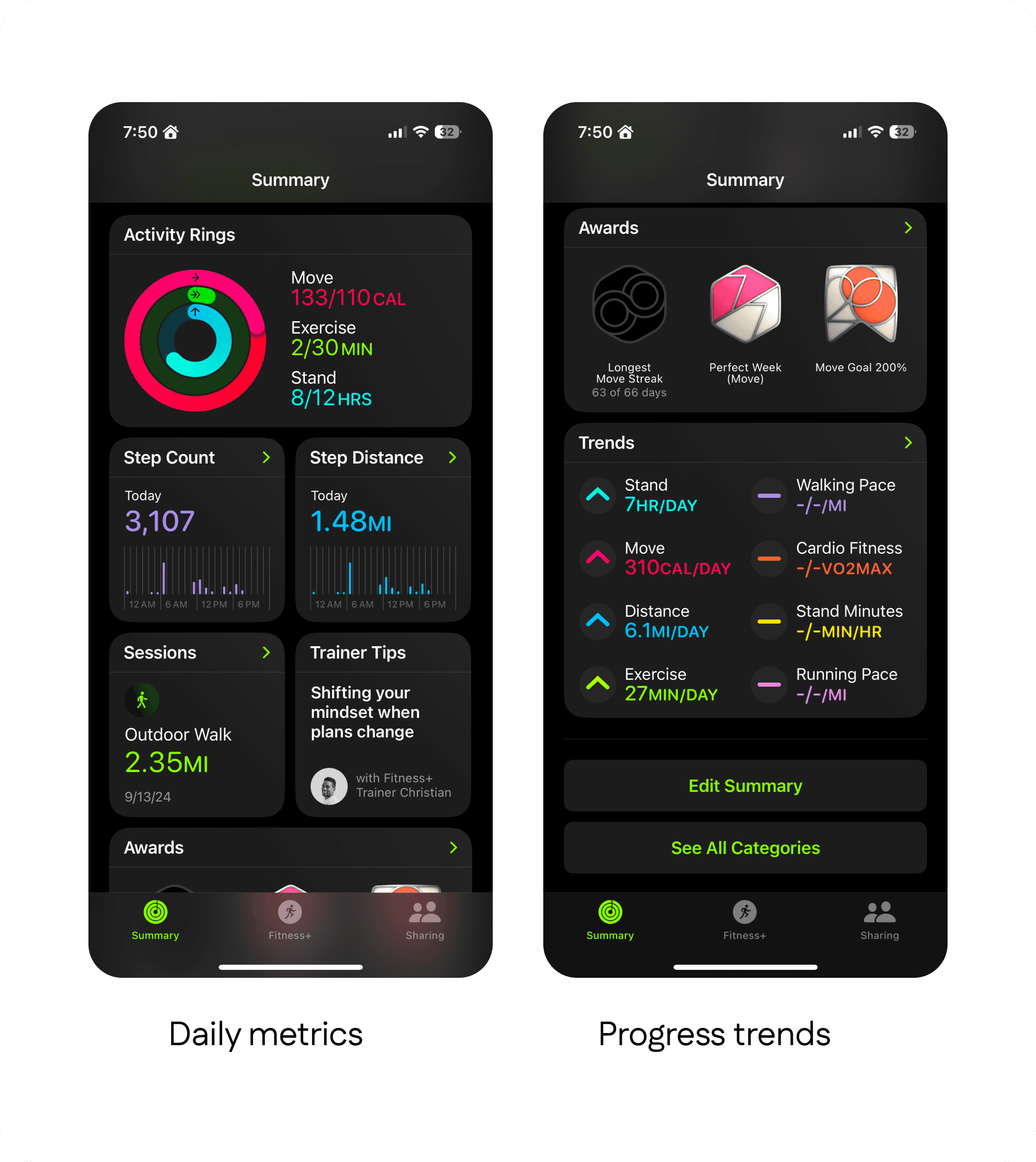
I also analyzed motivation techniques used in popular habit-building apps.
Duolingo
Apple Fitness
Sketches
After analyzing technical constraints and our design inspiration, we decided on the following pages and features:
1
Home page
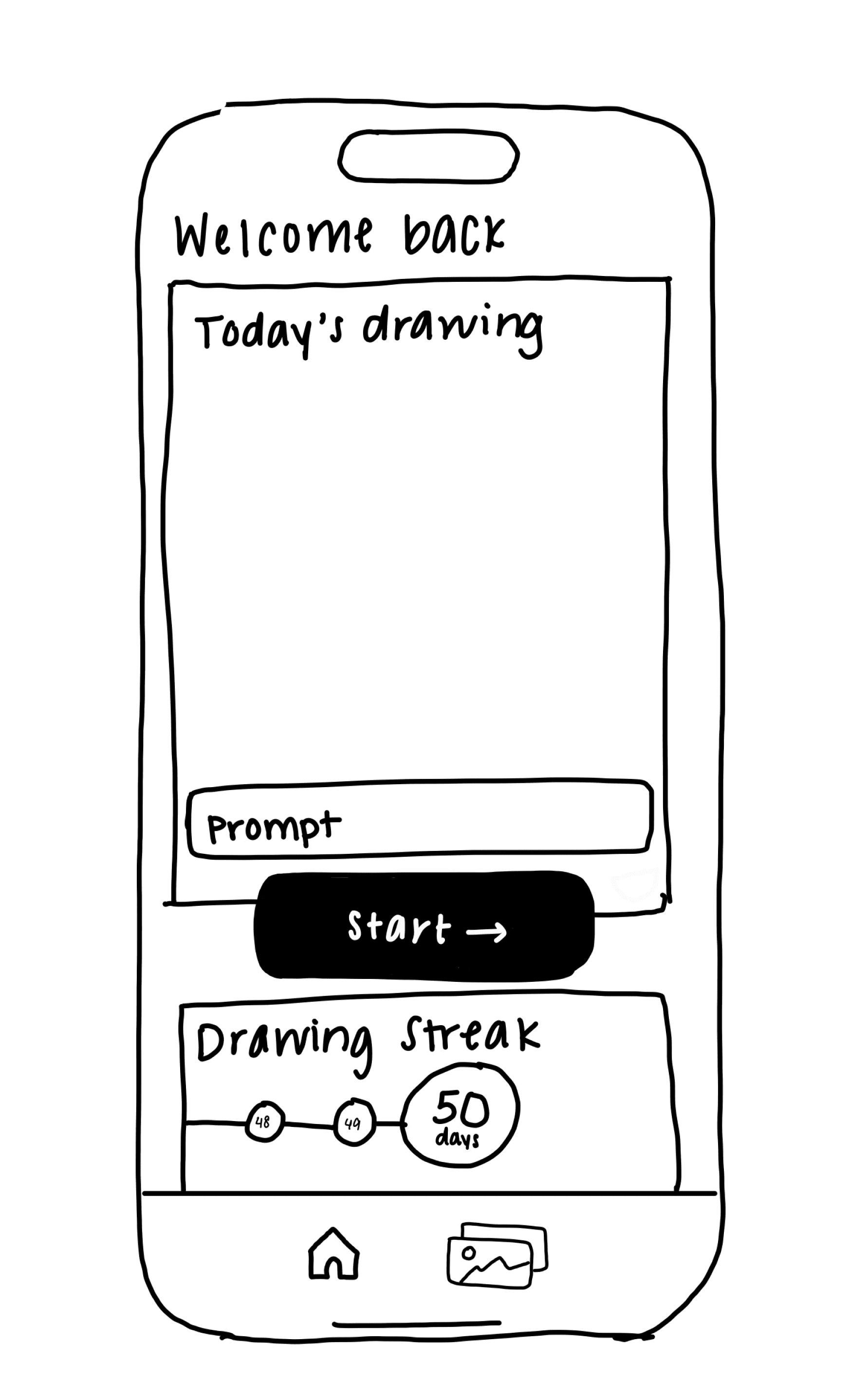
Our first version of the home page only included the drawing of the day and the user’s daily drawing streak.
However, this brought up some questions:
• Should users be able to choose a prompt on the home page or on the drawing page?
• What if users don’t want to start with a prompt?
What if users want to change the prompt?
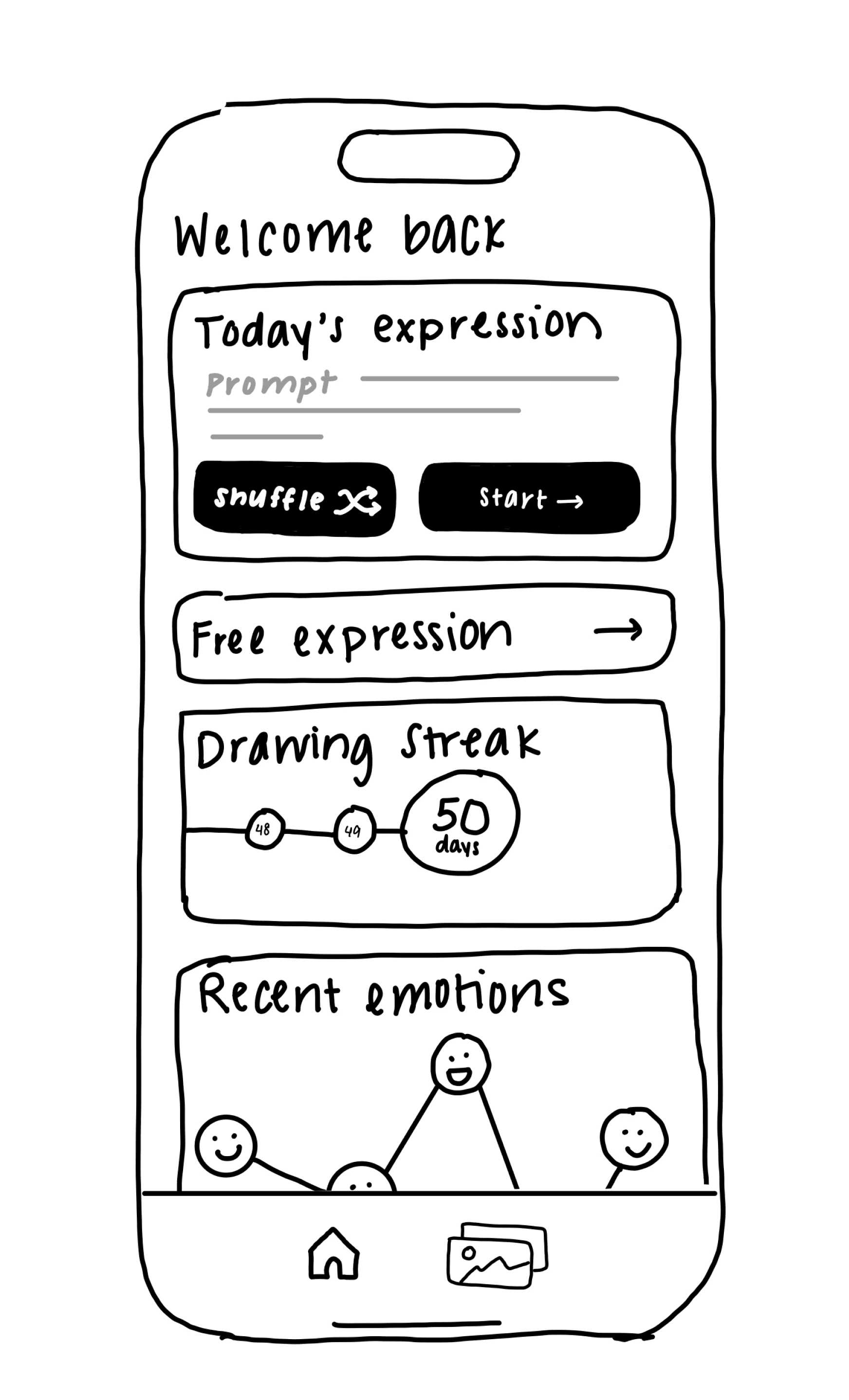
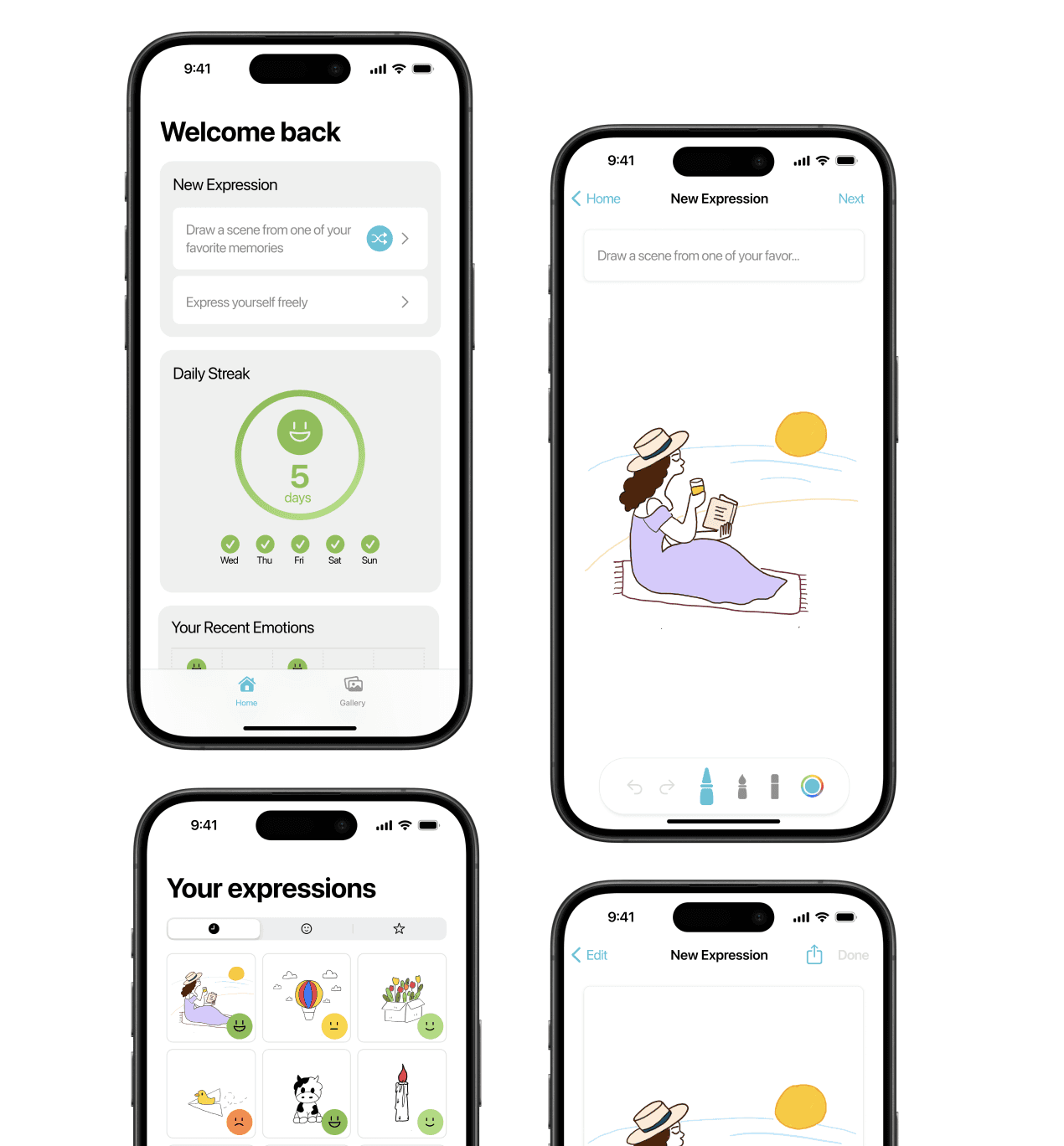
To address this, our next version of the home page showed users a random prompt, allowed them to shuffle the prompt, and start a drawing without a prompt.
We also added another emotion visualization that allows users to view the most recent emotions that they have tagged so they can track their recent emotions.
2
Drawing interface
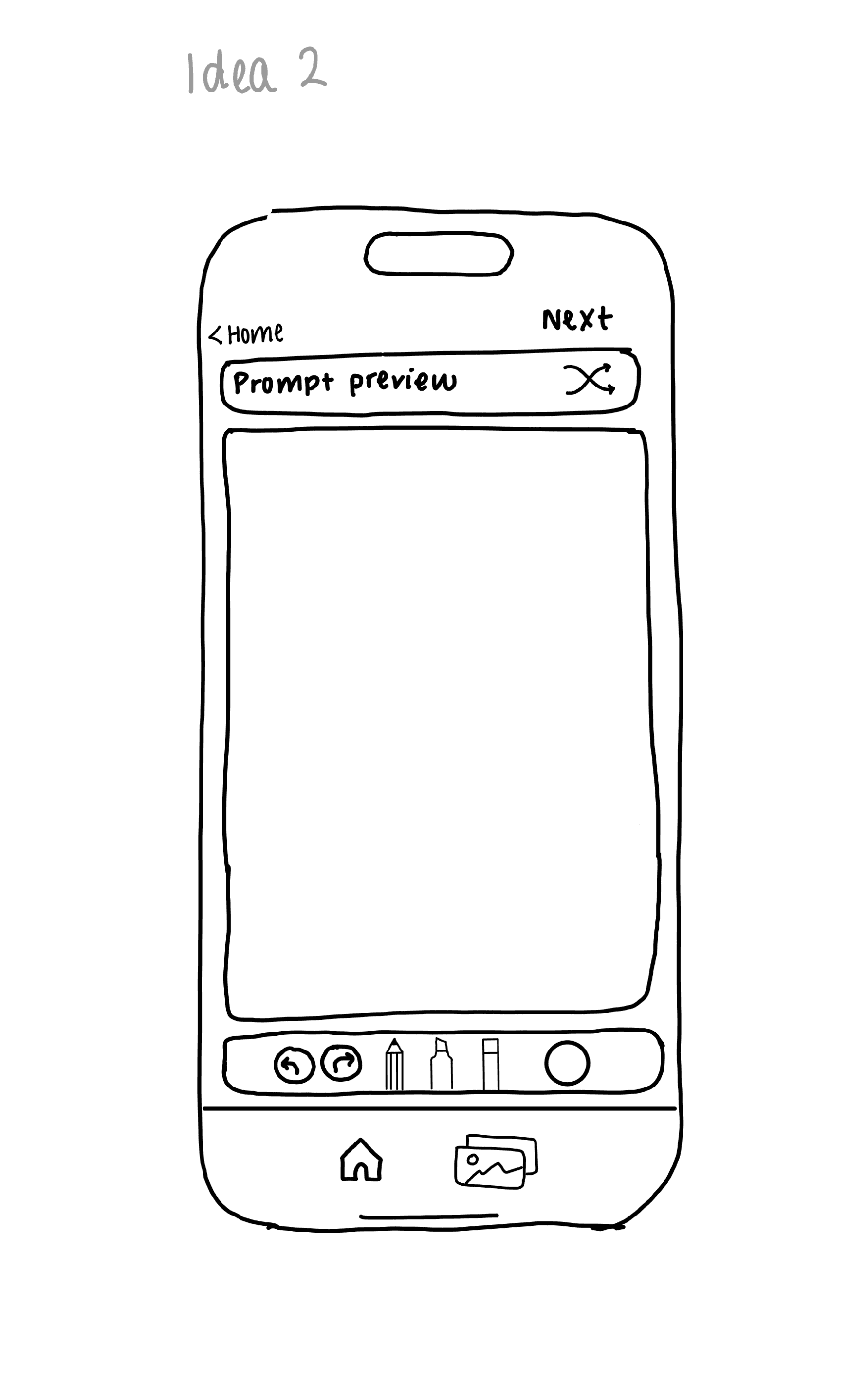
At first, the drawing interface was highly segmented, with individual sections for the prompt, drawing area, and tool bar.
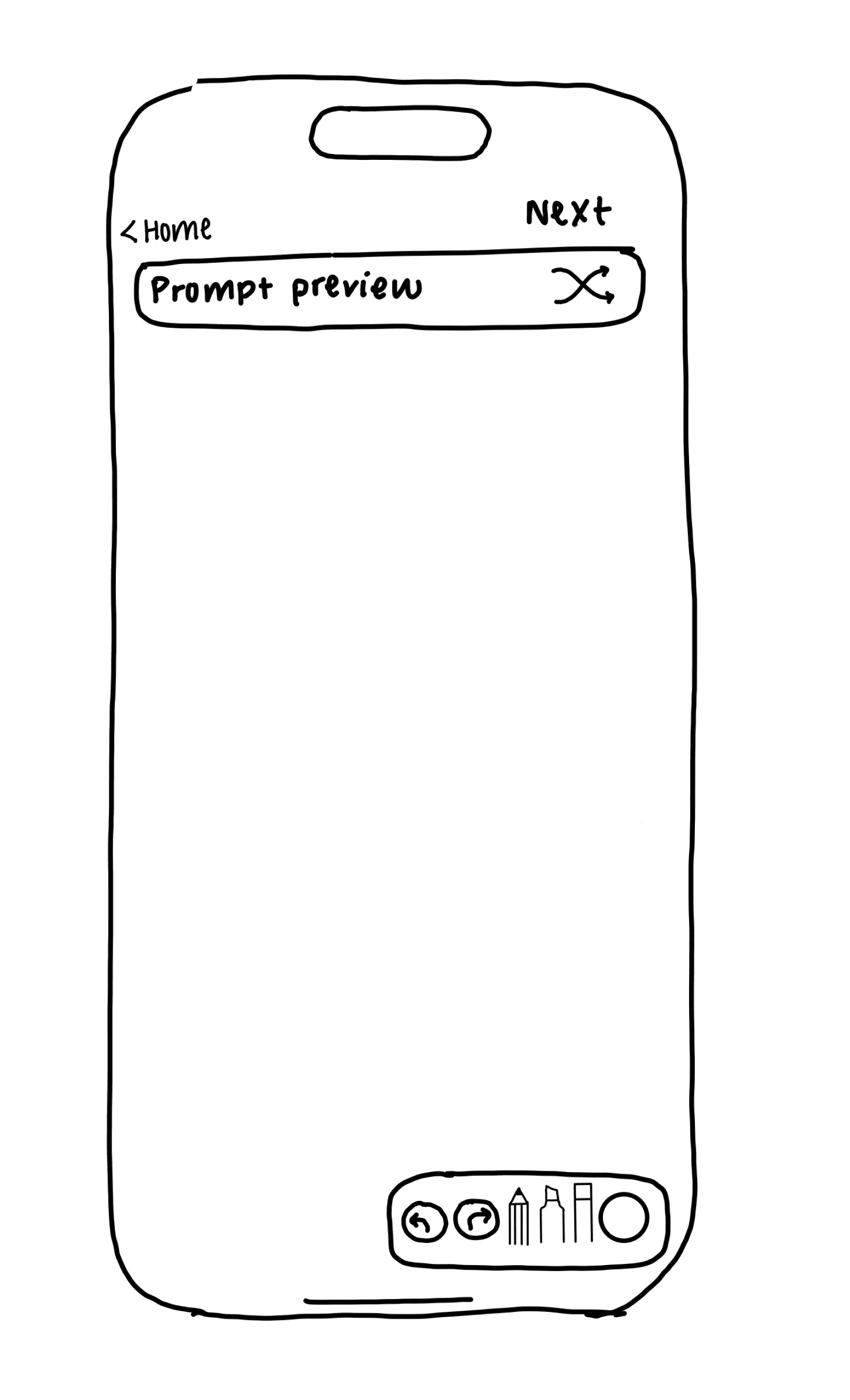
Since phone screens are already limited in size, we wanted to maximize the drawing area as much as possible to allow for a smoother drawing experience. Because of this, we allowed the drawing area to take up the entire area of the screen and placed the prompt and tool bar as floating cards on top of the drawing area.
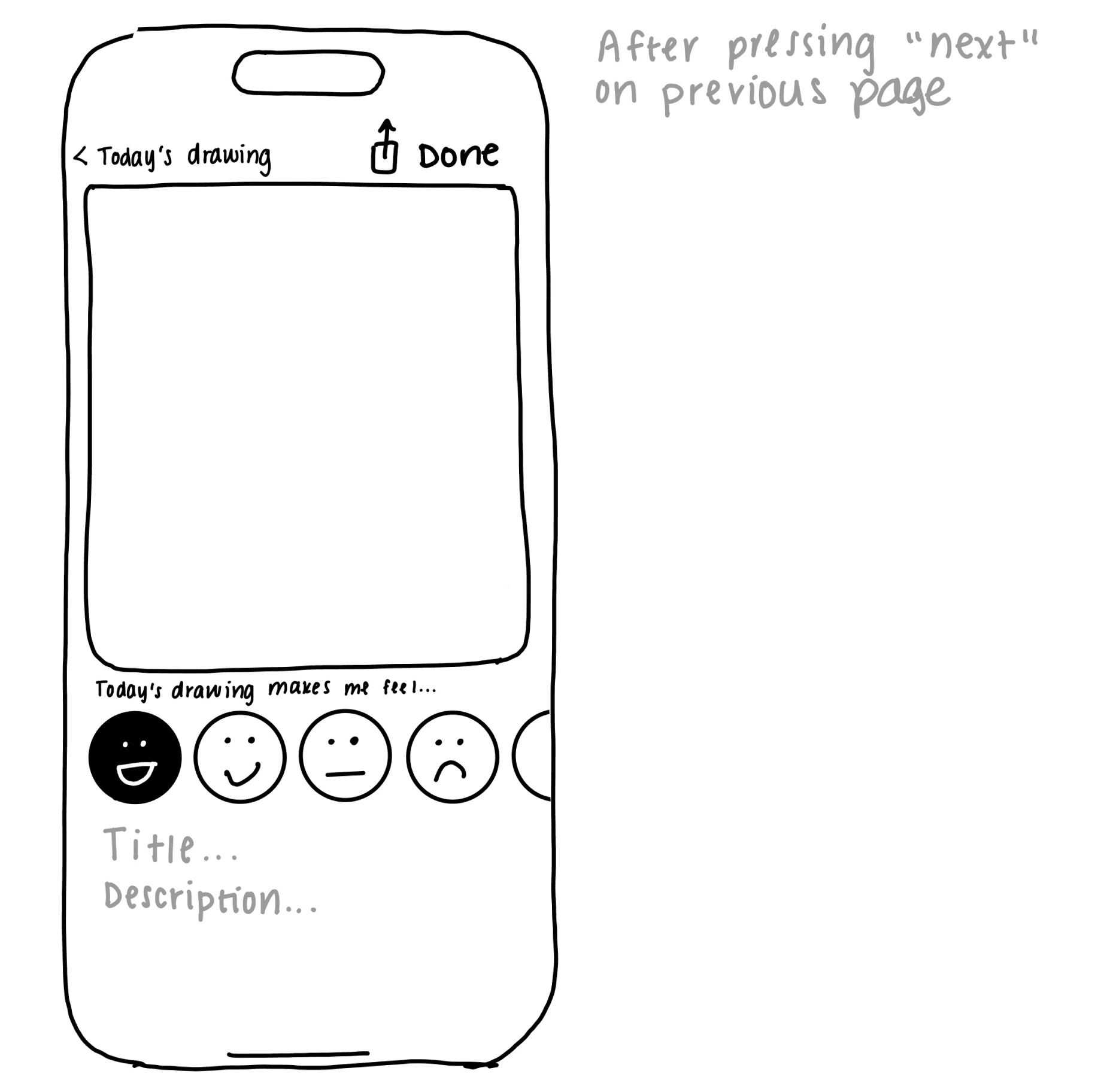
After pressing “Next,” we added the ability for users to reflect on how their drawing makes them feel by tagging their drawing with an emotion.
We decided on the following five emotion options:
We decided on having these five emotions on the spectrum of options because they present a balance between a reasonable number of options and enough nuance to accurately describe emotions. We presented these options to users in the form of graphics rather than words to provide a more visual and intuitive form of reflection.
We also added title and description fields so that users can reflect further on their drawings and easily recall what they were thinking of in the moment when they revisit previous drawings.
3
Gallery page
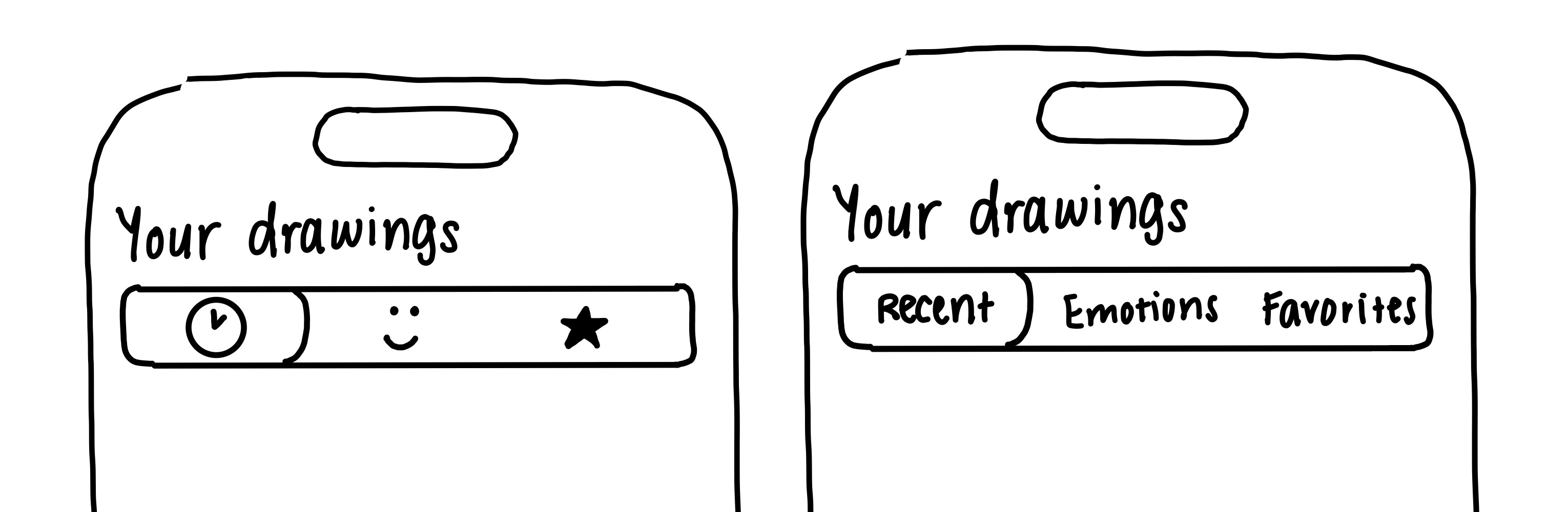
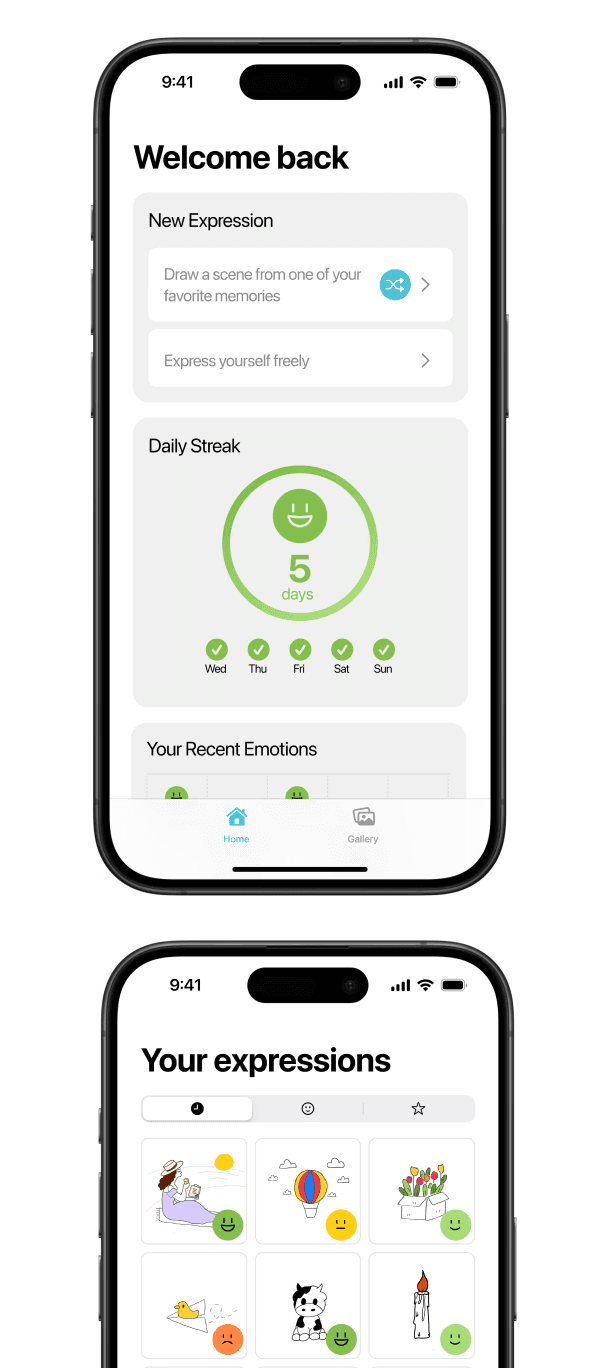
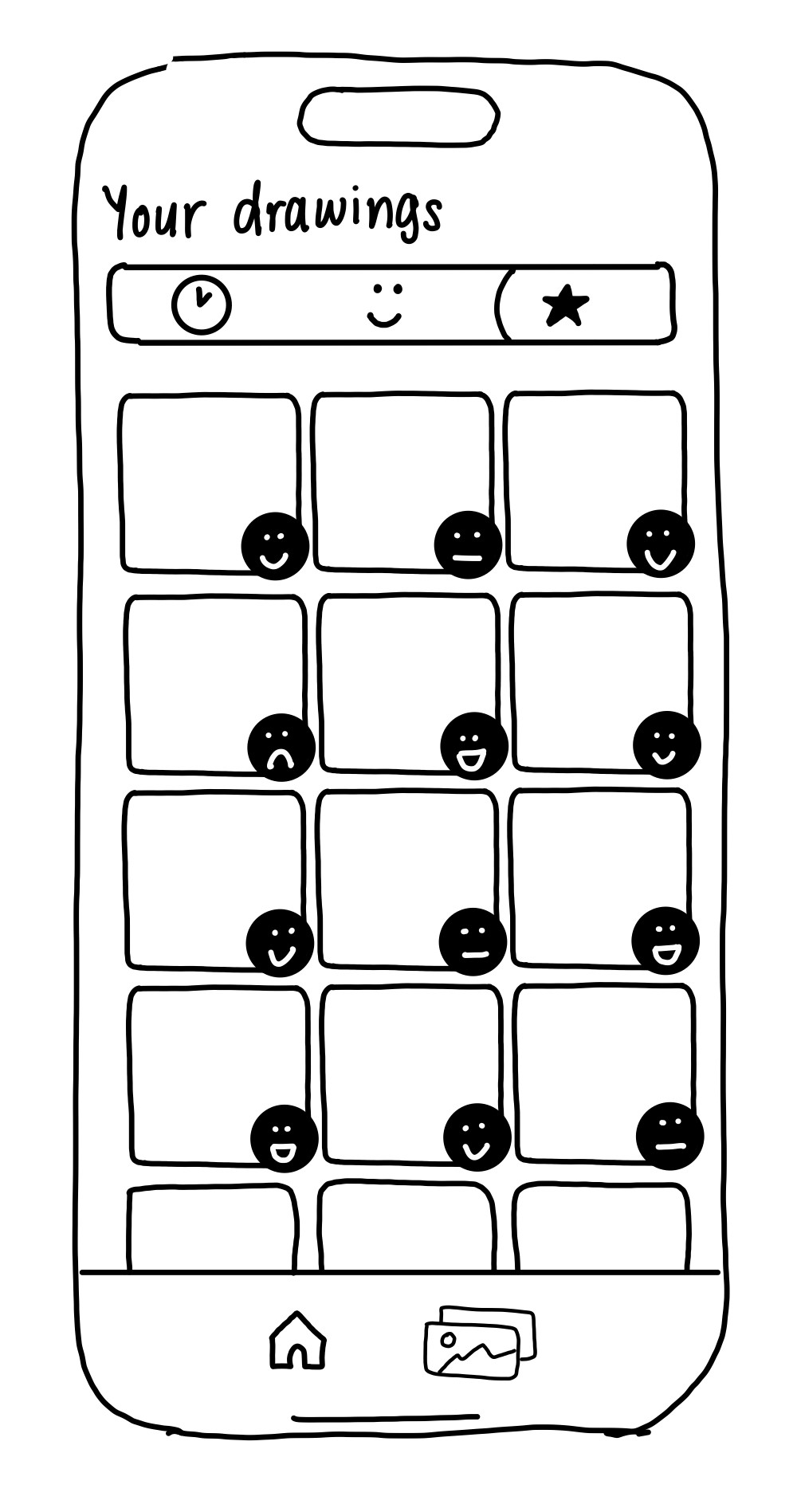
To allow users to easily view their drawings, we added a gallery page.
On this page, we added three views: recents, emotions, and favorites. We decided to indicate these views with symbols.
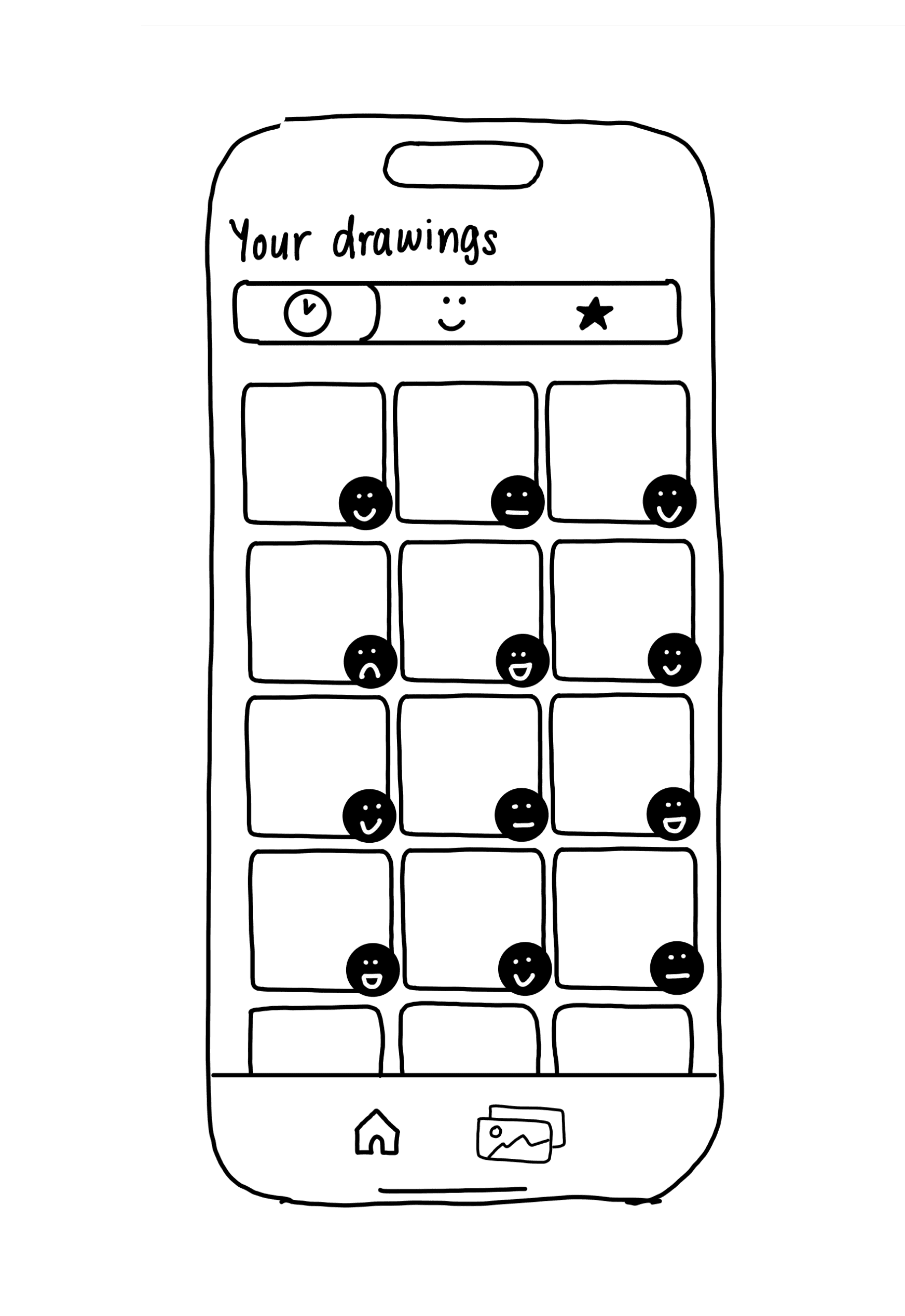
In all views, users see a grid layout of their drawings with badges that show their tagged emotions.
Emotions view
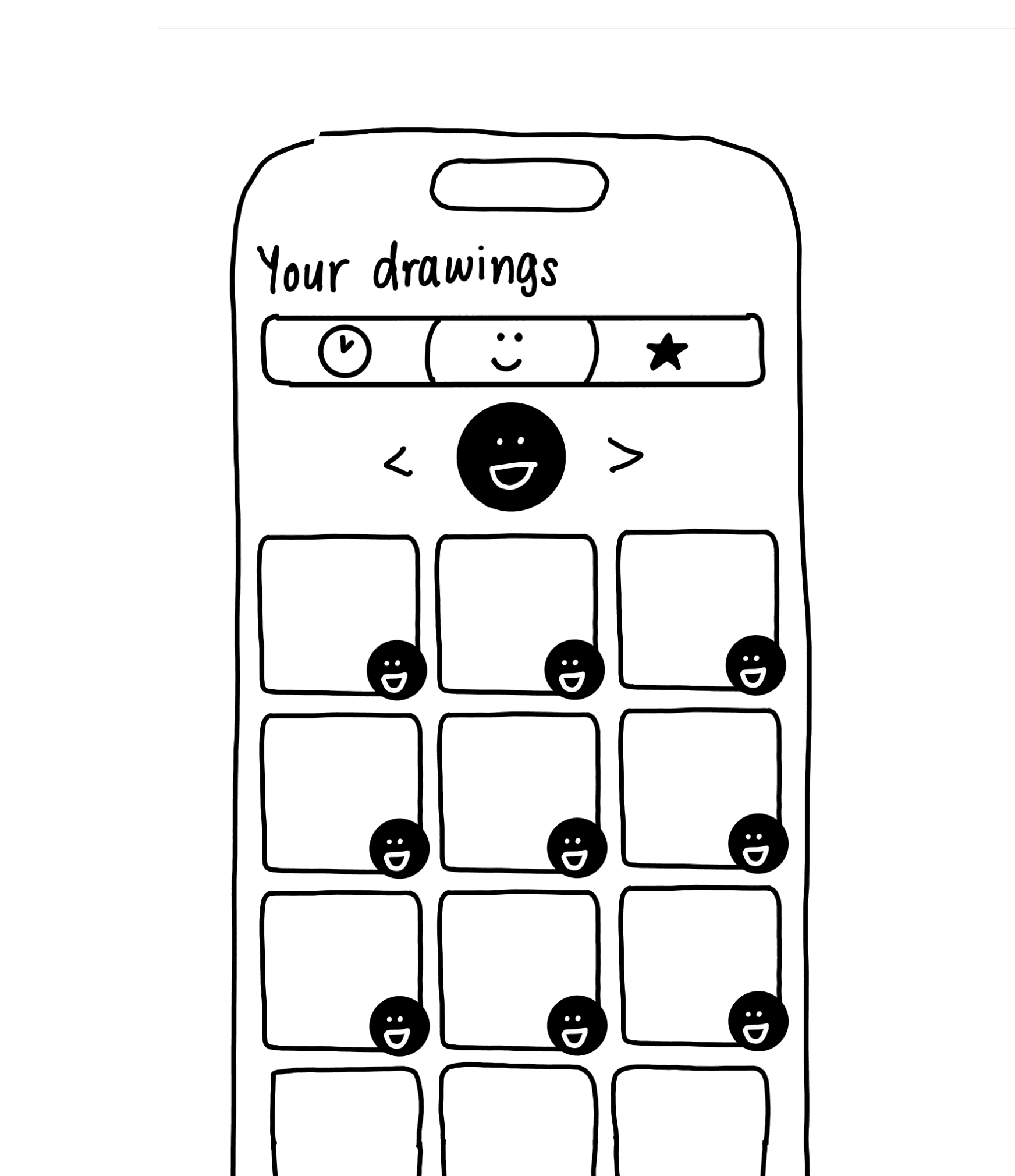
In this view, users can filter the drawings that are shown in the grid view by their tagged emotions.
My first sketch of this page had arrows for users to cycle through their different emotions.
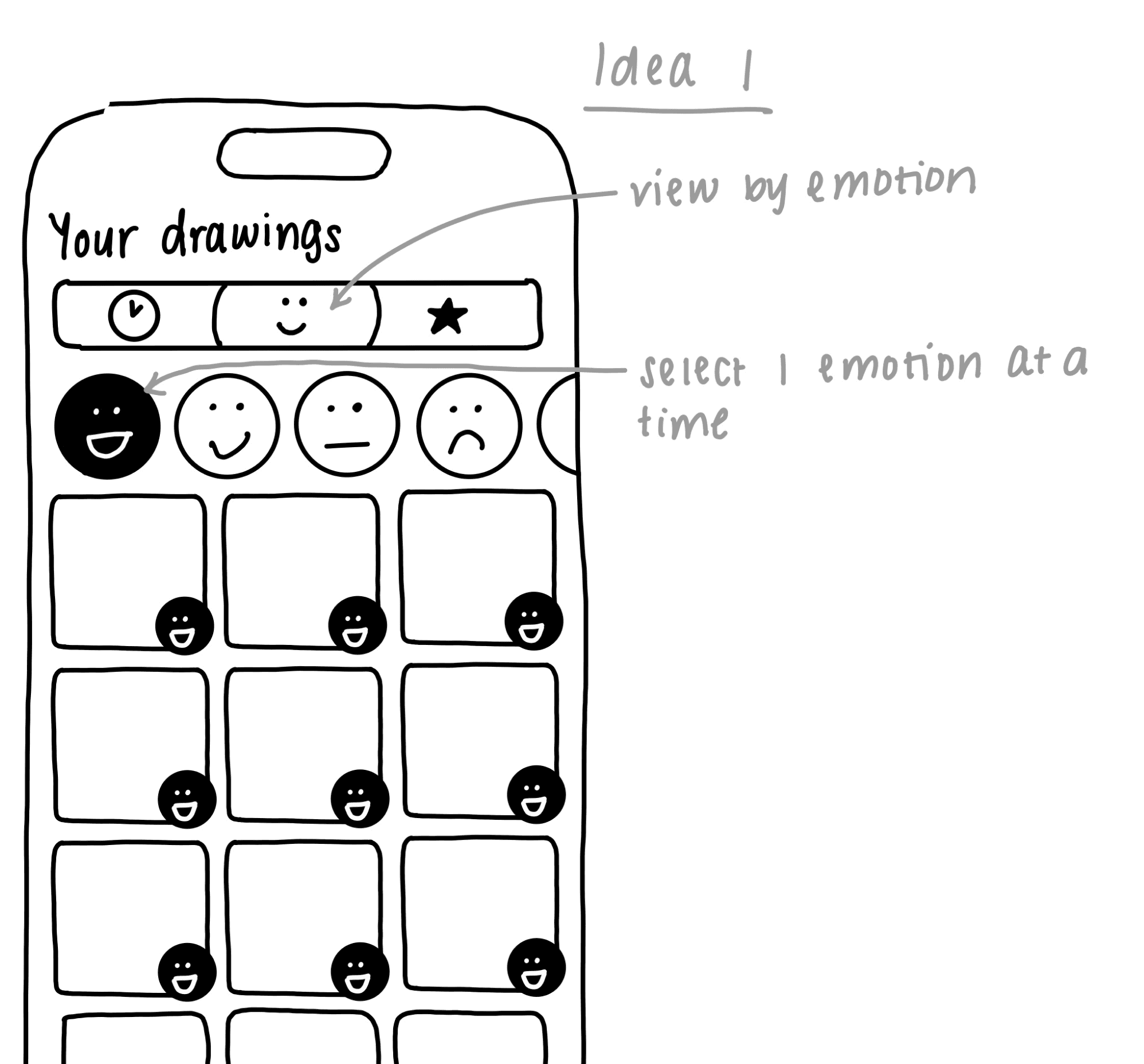
We thought a better interaction for filtering would be allowing users to see all the emotions and directly click on the one they want to view - this saves time when they already have an emotion in mind that they want to filter by.
Favorites view
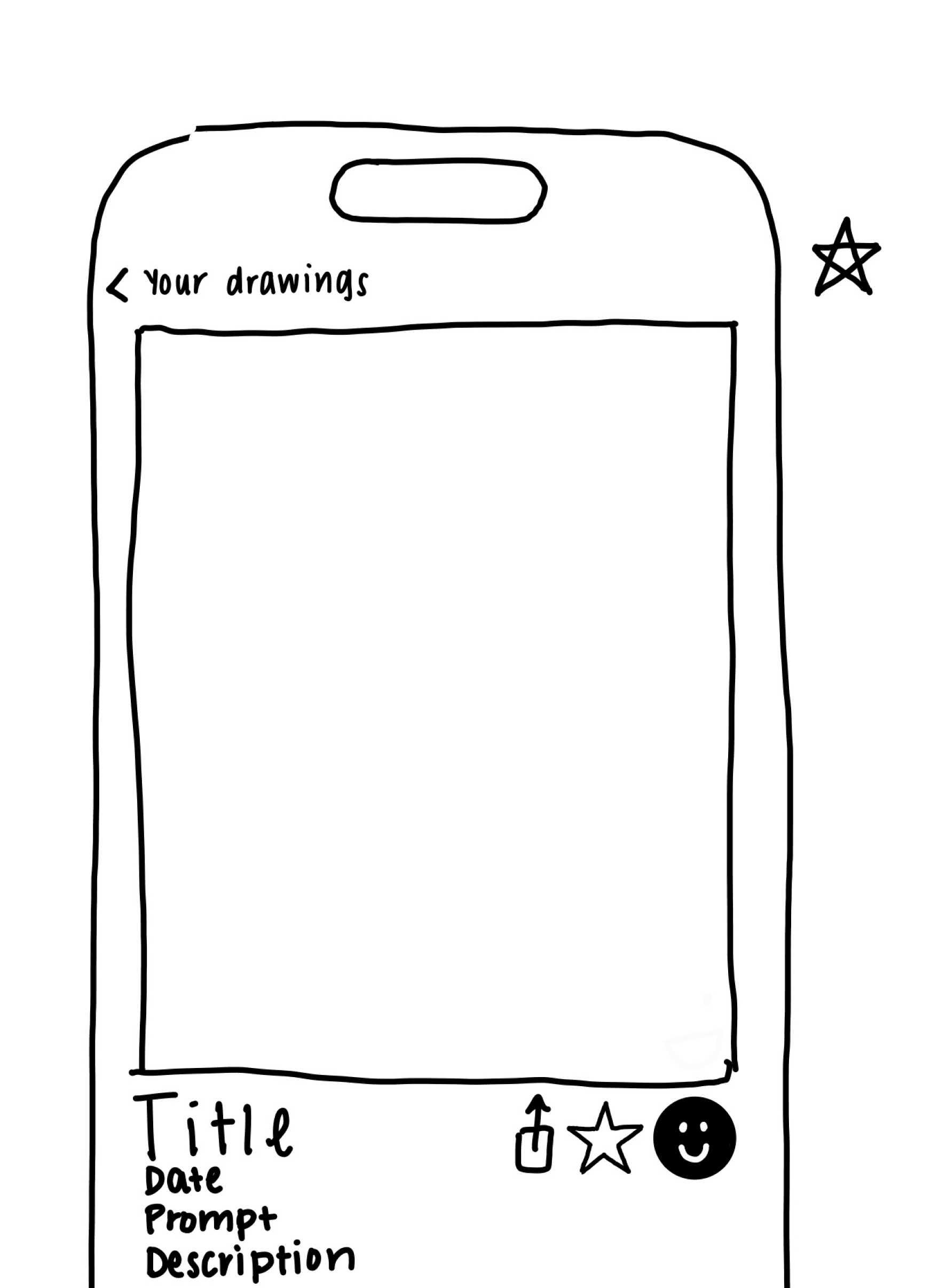
Users can also favorite drawings to easily come back to them in the favorites view of the gallery page. This is done on the feed view of the user’s drawings (see the section below).
4
Feed view
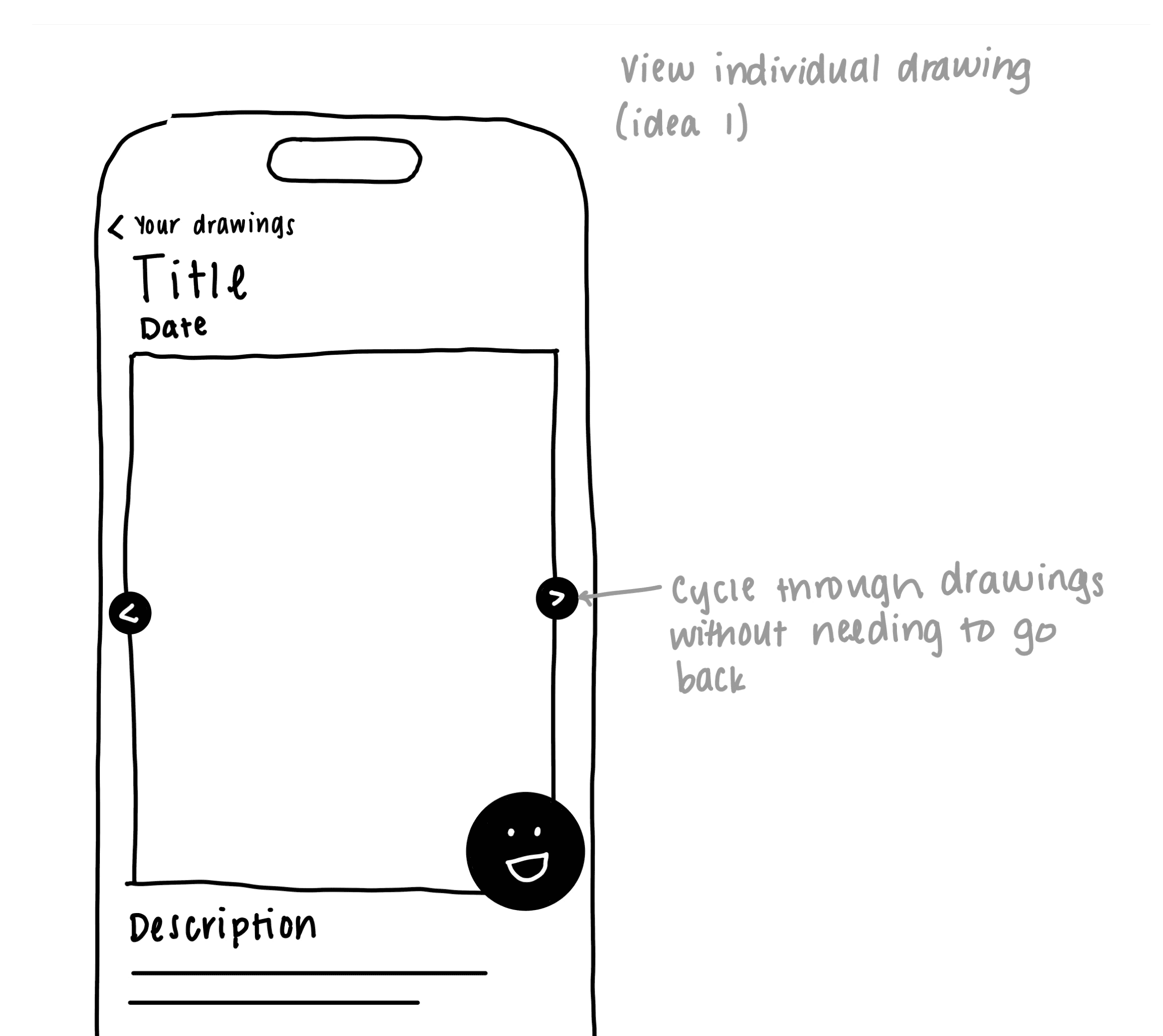
From the grid view, if users click on a drawing, they are taken to a feed view where they can go through all their drawings and view all of their details, such as title, description, and date.
Our first iteration of this page included arrow buttons to cycle through drawings. However, this made each journal entry feel separate.
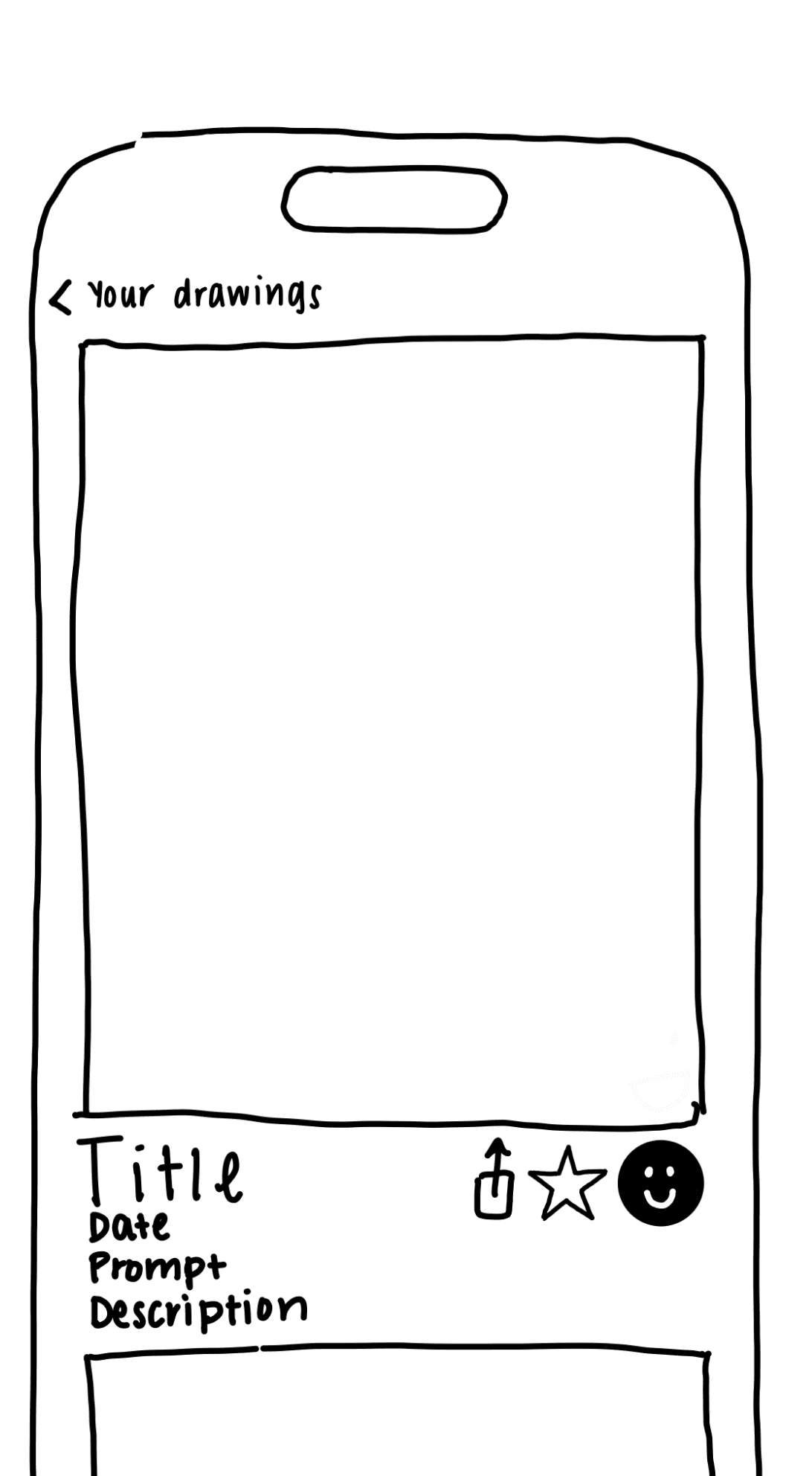
After looking at other feed views in popular apps like Instagram, we decided that users are probably more accustomed to scrolling through images vertically, so we switched to an “endless” scroll for our feed view instead. This also makes users more likely to scroll and view more of their expressions, thus resulting in more time spent reflecting on previous entries.
Mockups
After finalizing the features, I used Apple’s iOS 17 Design Resources to create mockups for both iPhone and iPad breakpoints. You can view all my mockups here (opens in Figma):
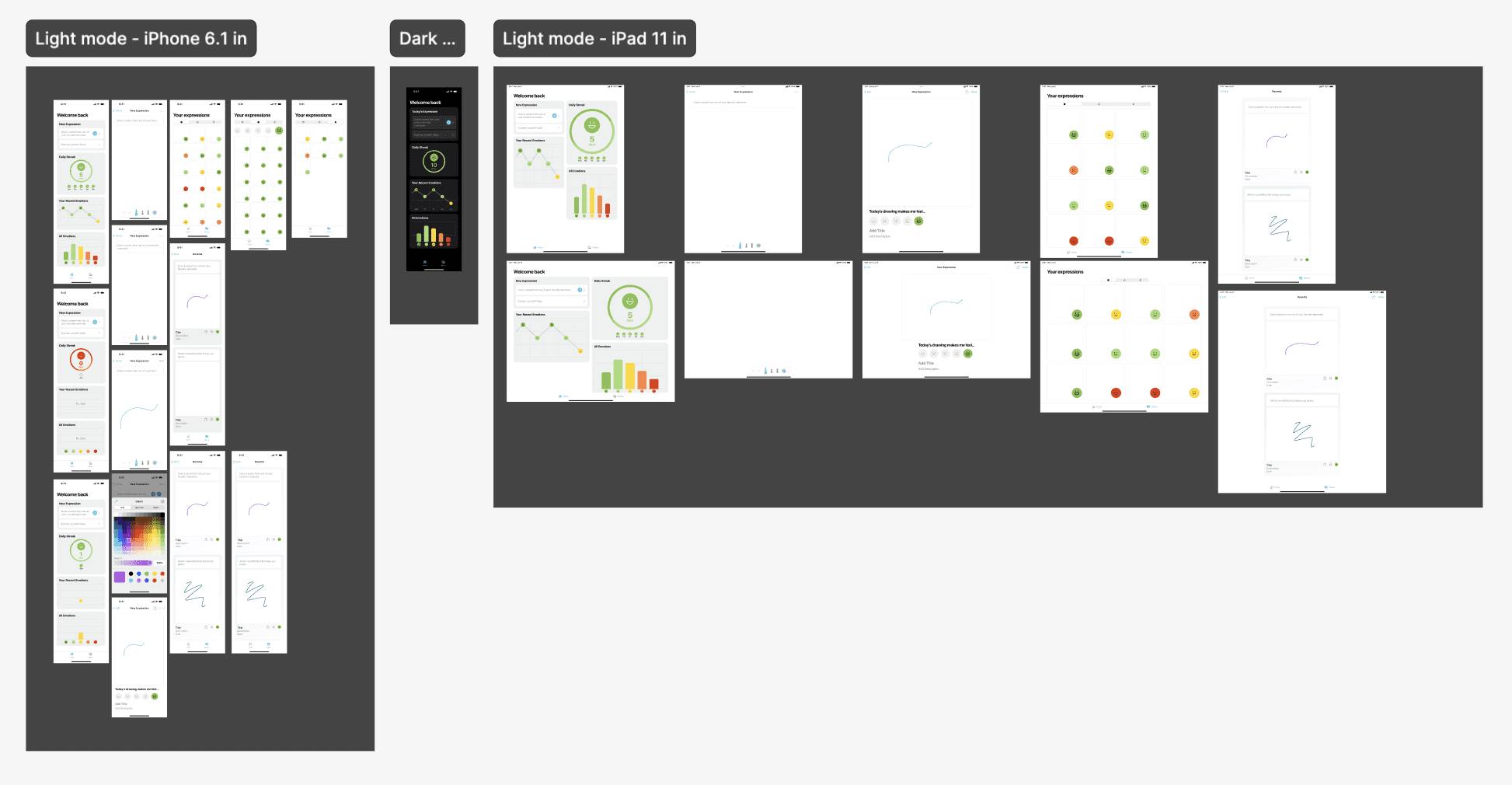
Here are the main design decisions that were made during this stage:
1
Streak visualization
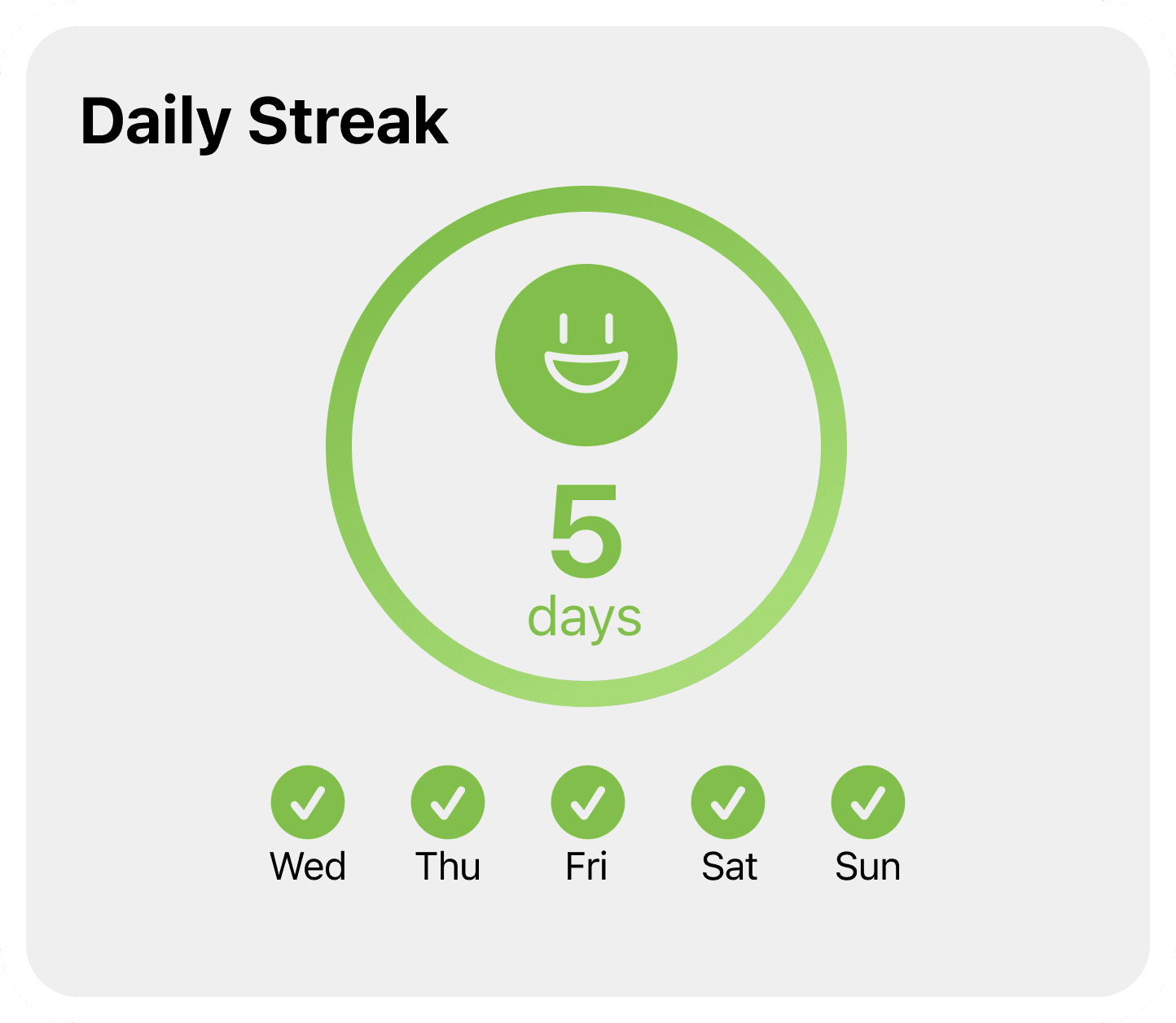
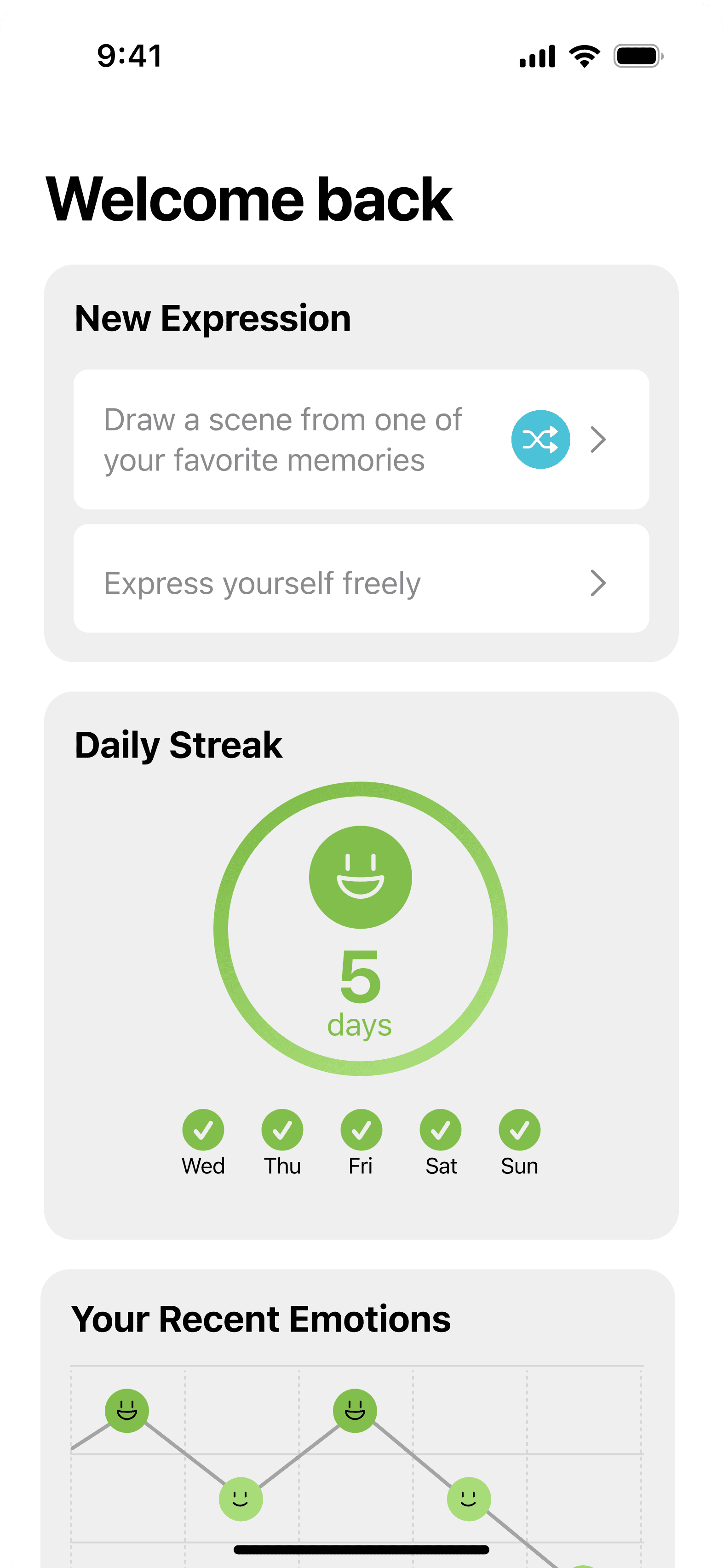
We focused on simplicity when designing the streak visualization. We wanted users to be able to quickly glance at this card on the home page to see how long their drawing streak has lasted.
Our first few iterations were heavily inspired by gamified apps that show usage streaks with colorful visualizations, like Duolingo and Headspace.
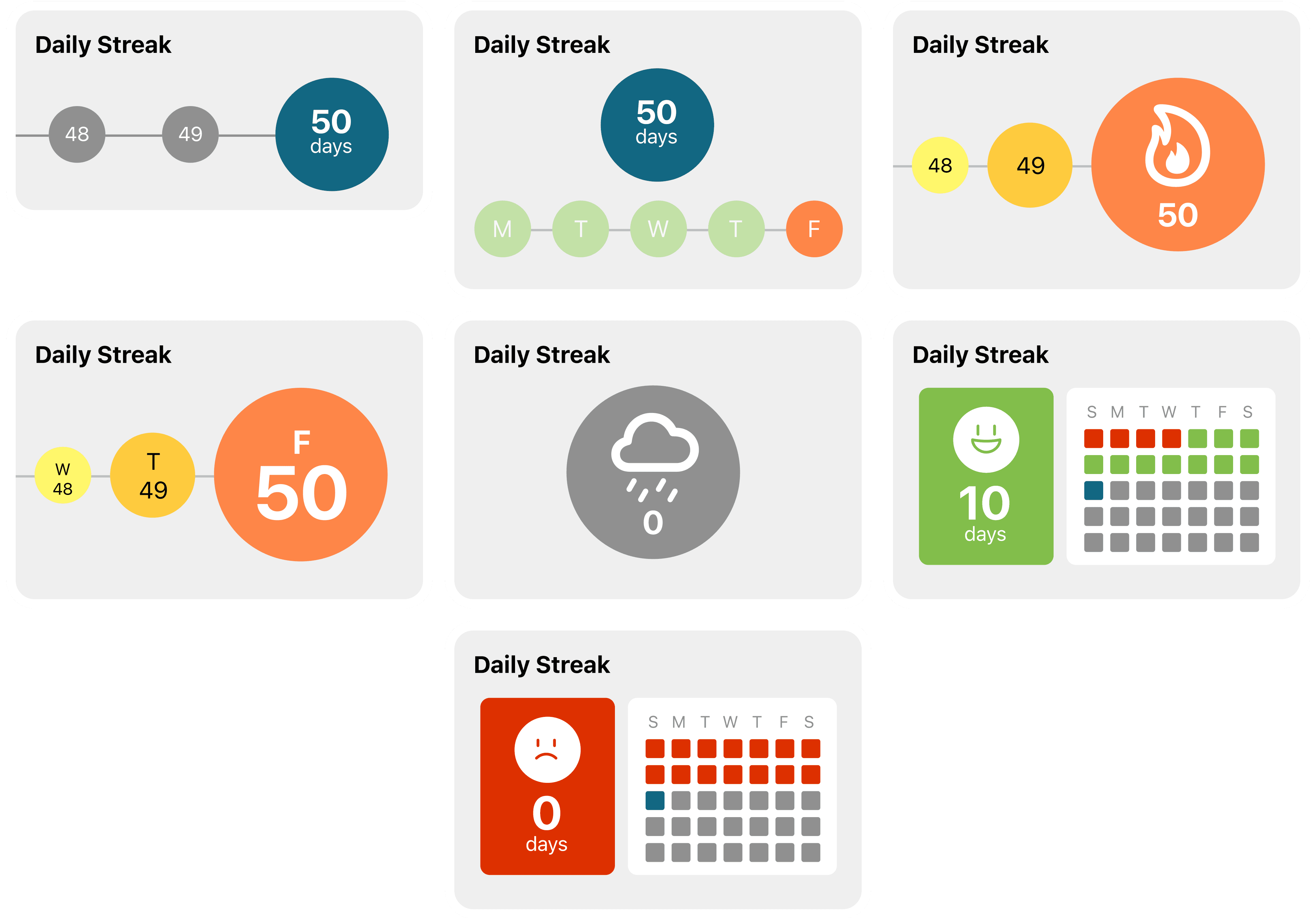
Since our app is meant for unwinding and thoughtful reflection, we didn’t want to overwhelm users with busy graphics and combinations of colors. Our final design for this card just shows the streak length in days, a corresponding color, an emotion icon, and the previous week’s streak activity:
2
Drawing interface
At first, we wanted to allow users to change, remove, and add prompts to and from their drawings directly on the drawing interface.
To maximize drawing area, we initially decided to just show a prompt preview that took up one line of text and allow users to tap on the preview to view the entire prompt.
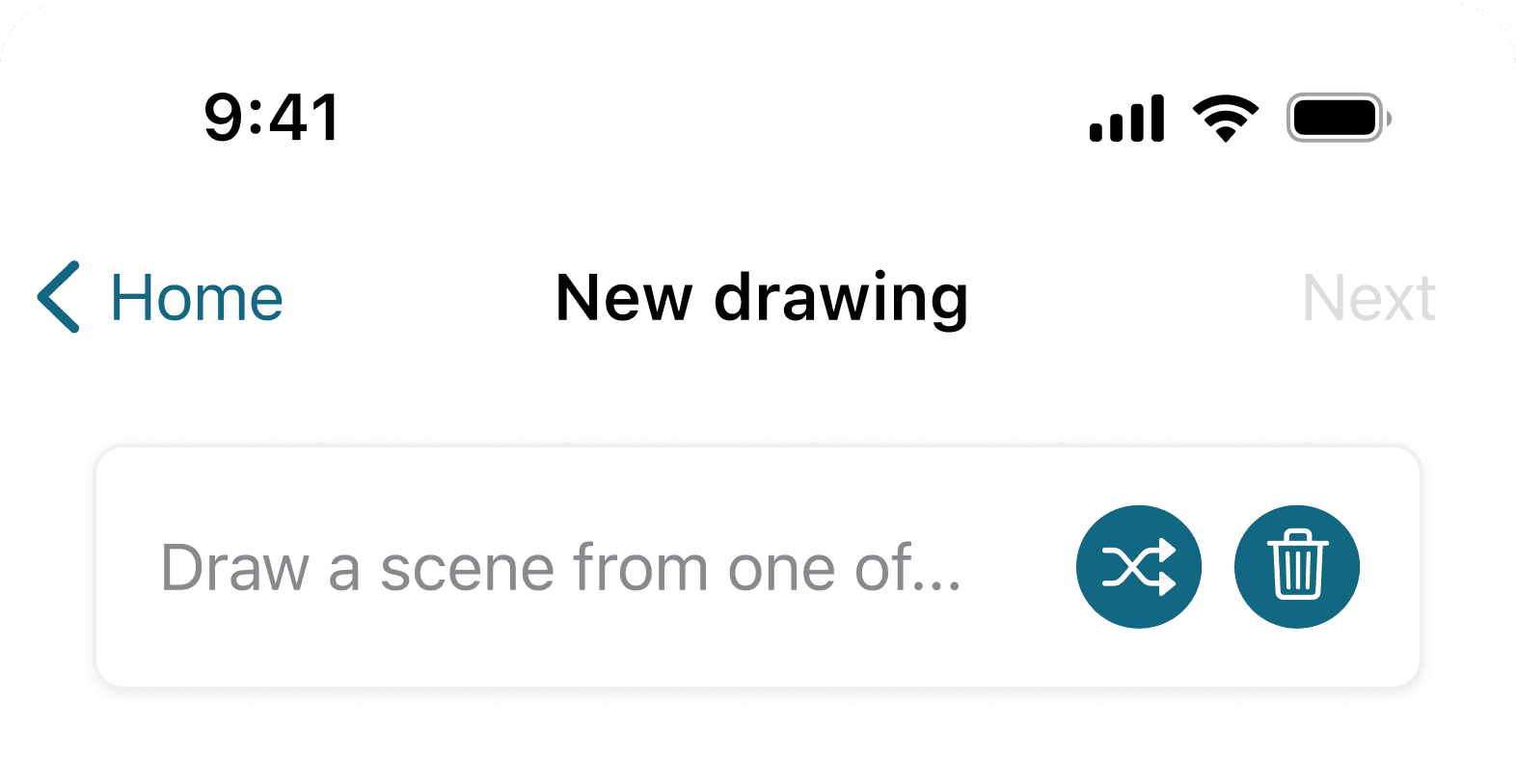
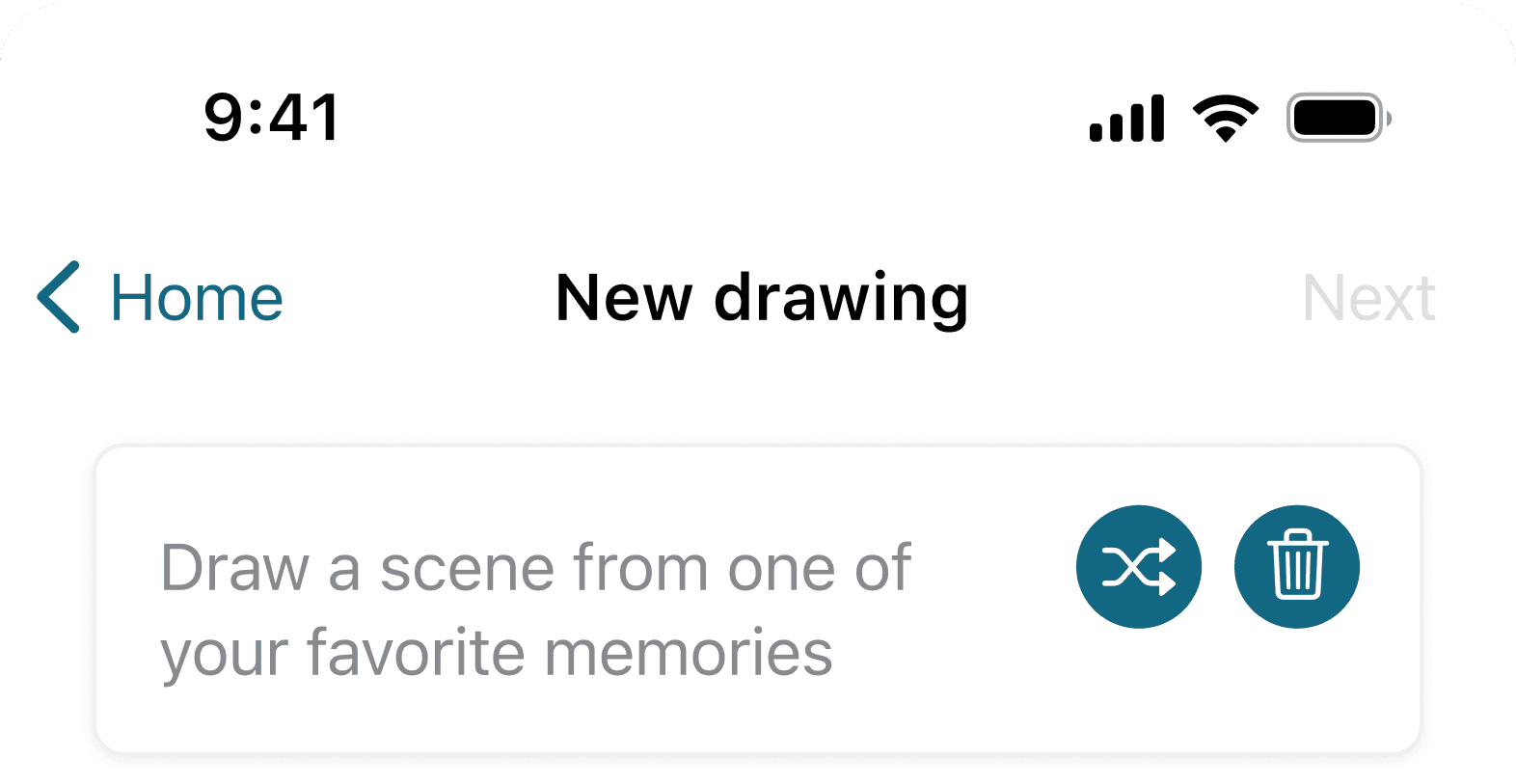
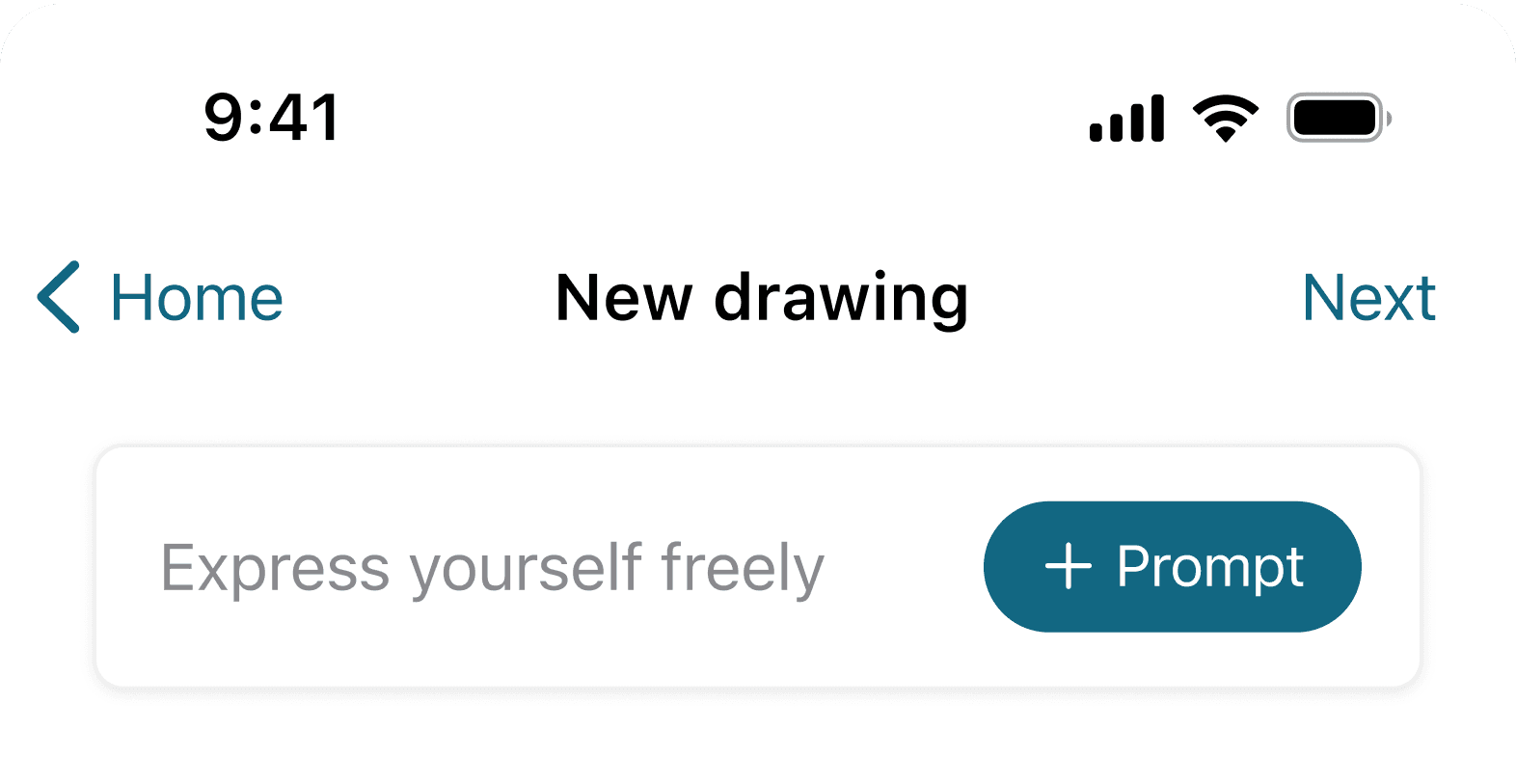
However, this interaction was not that intuitive, so we decided to always show the entire prompt. Since our prompts take up 1 to 3 lines of text, this does not interfere too much with the drawing area.
We also decided to get rid of the shuffle and delete buttons on the prompt since it was unclear if clicking these buttons would also change the prompt that is shown on the home page. This also allows users to fully focus on drawing and reflecting rather than rethinking the prompt options. Overall, we wanted to the drawing screen to have as few buttons as possible and just a be a blank canvas for reflection.
Now, if users want to change the prompt, they know that there is only one place to do so (in the first card on the home page).
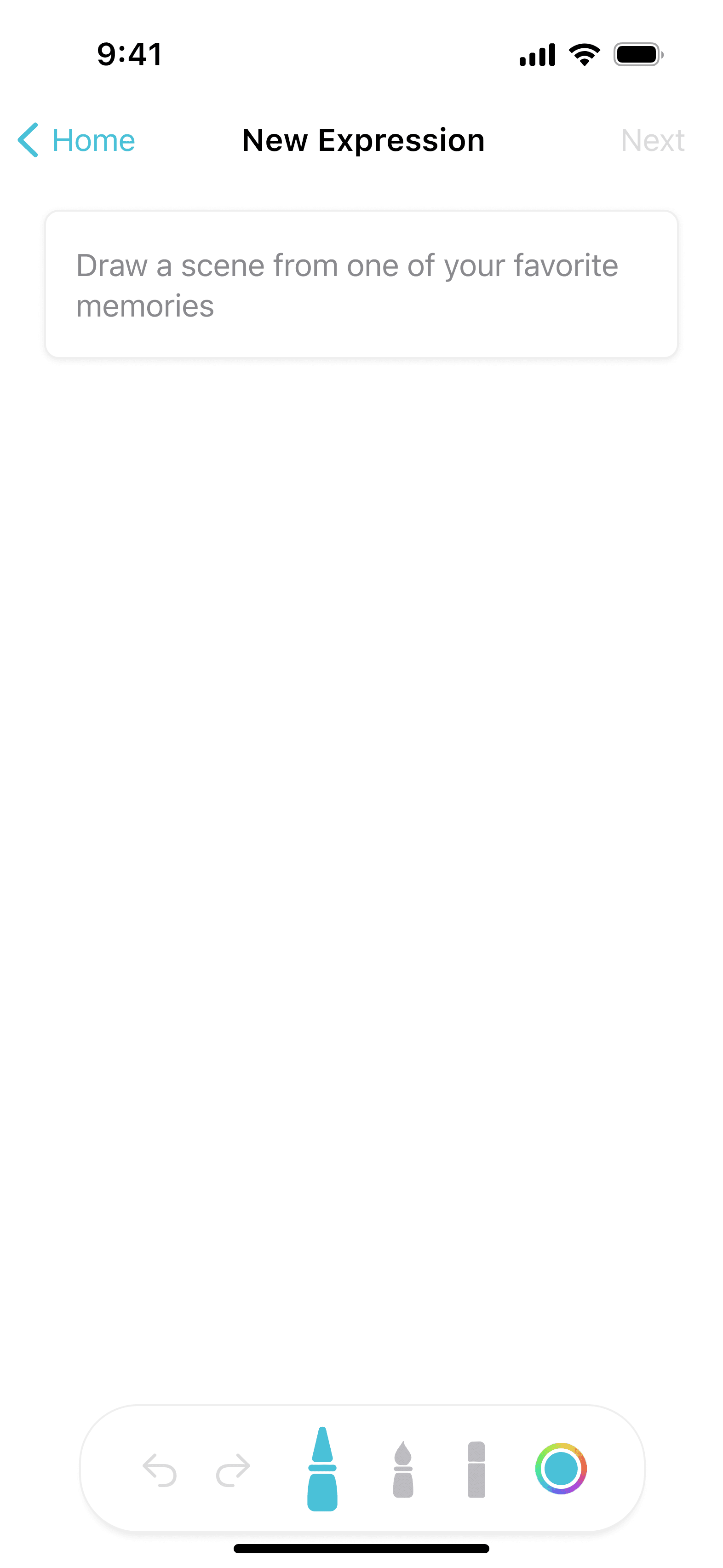
Our tool bar also went through many different iterations. We began by using Apple’s SF Symbols for each of the tool icons, and we also positioned the tool bar in the bottom right of the page.
Home
New drawing
Next
Draw a scene from one of...

9:41
Home
New drawing
Next
Draw a scene from one of...
9:41
We didn’t like the inconsistency between each of the icons, though, so I created custom icons for each of the drawing tools. We also thought the touch targets of each of the icons was too small, so we added more padding between the icons. The original right-aligned toolbar made this page look off-balanced because everything else on the screen was center-aligned. It also already took up a lot of horizontal space, so users would not be able to draw much in that area anyway. Because of this, we also centered the tool bar on the page.
Home
New Expression
Next
Draw a scene from one of your favor...

9:41
3
Emotion icons
Our first emotion icons consisted of blue gradients that aligned with our early color palette but made it difficult to distinguish the emotions at a glance.
Instead, we decided to make a linear scale from red to green that would correspond to a scale from negative emotions to positive emotions.
Welcome back
Today’s Expression
Draw a scene from one of your favorite memories
Express yourself freely
Daily Streak
Your Recent Emotions
All Emotions
Home
Gallery
9:41
Welcome back
New Expression
Draw a scene from one of your favorite memories
Express yourself freely
All Emotions
Daily Streak
5
days
Sun
Sat
Fri
Thu
Wed
Your Recent Emotions
Home
Gallery
9:41
Next Steps
After testing the app, I made note of the following features that I wanted to design for future iterations of the app:
1
Deleting drawings
Currently, once a drawing is saved, users cannot delete them. Deletion can be useful for when users only want to save their best work. This can encourage them to use the app more often because it can reduce the fear of making mistakes and increase their sense of control over their artwork.
2
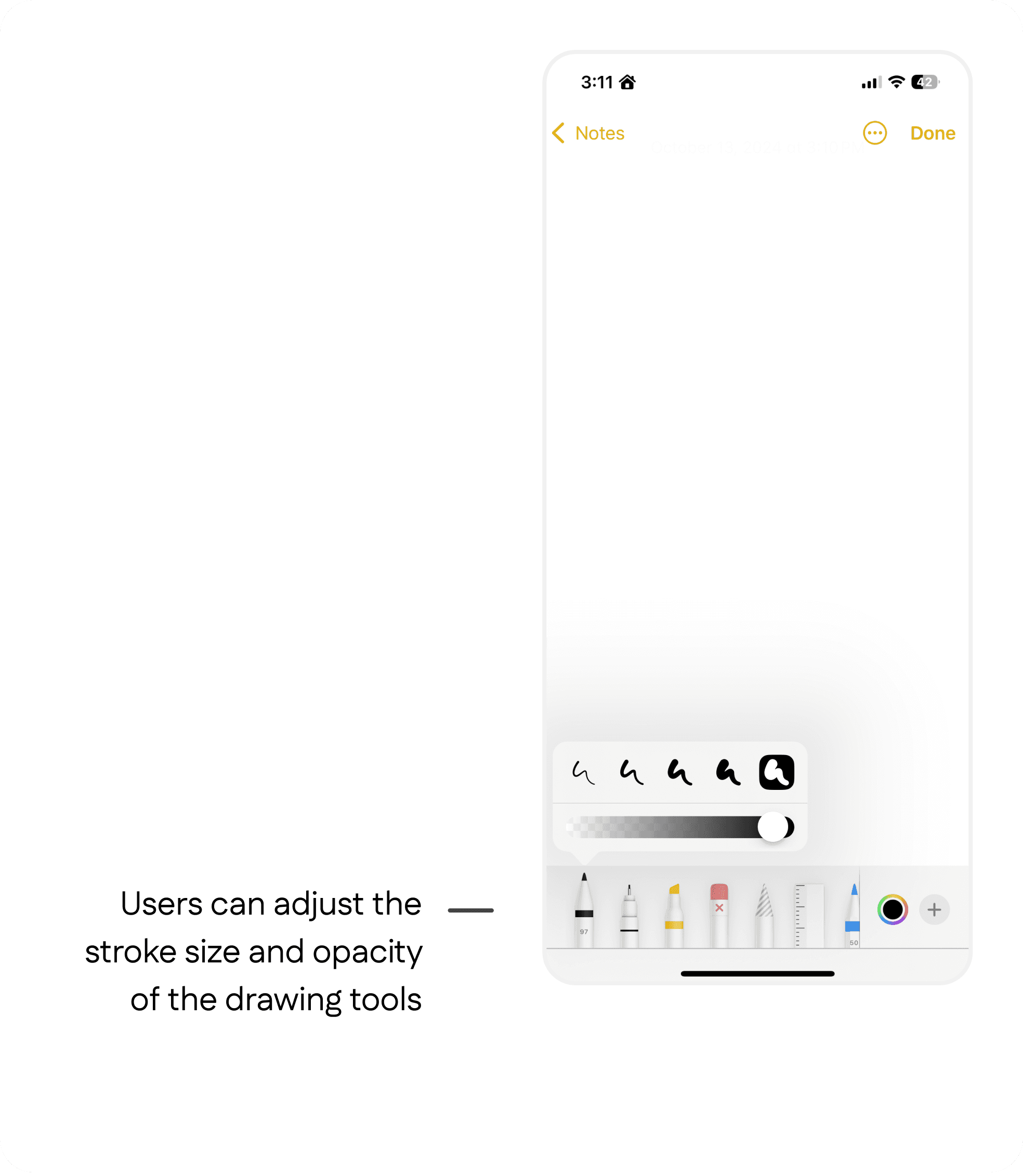
Adjusting stroke size of drawing tools
The original default stroke size of the drawing tools was extremely thin and did not allow users to easily make precise strokes, so adding the option to adjust this size would be beneficial. Allowing users to adjust the stroke size of their drawing tools can also allow them to create more intricate artwork on the app, which enables more creative freedom.
3
Sync with Apple Health for Mindful Minutes tracking
Expressly provides users with a simple way to reflect on their life experiences, so time spent on the app can be categorized as mindful minutes. Because of this, it would be beneficial to sync with Apple Health’s Mindful Minutes so that users can add the time they spend creating drawings in Expressly to the amount of time they spend on other apps with a focus on mental health.
Learnings
Apple Design Resources go a long way.
Prior to this project, I had very limited experience working with Apple Design Resources, since most of my previous projects involved working within a different existing design system or creating my own design system. I really enjoyed getting to learn about the constraints of Apple’s Figma assets and applying them to this project, and I loved how the visual design of this app is consistent with many other iOS apps. It also saved a lot of time when creating my mockups - that’s why I was able to go directly from my hand-drawn sketches to high-fidelity mockups.
Simple solutions can sometimes be the best solutions.
Especially when designing the streak visualization, I was coming up with layouts that were better-suited to more complex apps with more functionality. In my time working on this project, I learned that it’s important to evaluate the complexity of a product to help make design decisions that are best-suited for users’ needs.