
Epic Electronic Fetal Monitoring
Historical Alerts
Helping labor & delivery nurses complete better documentation.
Estimated reading time: 6-7 minutes
Project duration: 3 months
Project Overview
Date
Jun 2024 - Aug 2024
Team
Sam Muller - Software Development Team Lead
Tyler Royer - Software Development Mentor
Rachel Hilby - Software Development Intern
Alexander Fellows - UX Design Team Lead
Kristina Leo - UX Design Mentor
Rishma Balakrishnan - UX Design Intern
My role
UX research and design
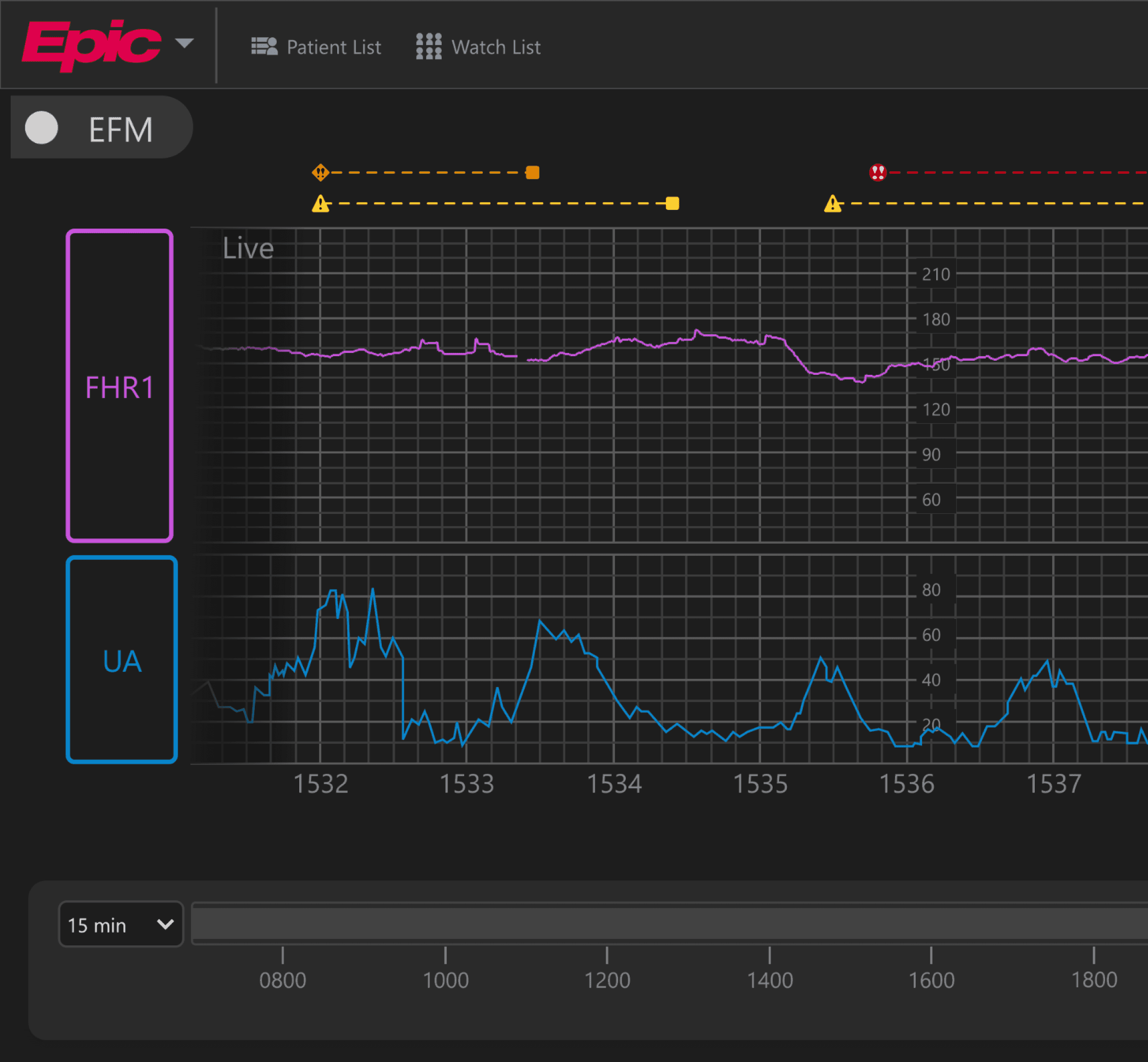
Electronic Fetal Monitoring (EFM) is used by clinicians to monitor important data such as fetal heart rate and uterine contractions when patients are in labor. Epic’s EFM software currently includes a panel for current alerts that are triggered by abnormal data values, but there is no way for clinicians to review past alerts that happened within Epic Monitor. Instead, clinicians must log on to Hyperspace on another device to view alert logs. My software development intern pair Rachel and I were tasked with designing and developing a way for clinicians to view past alerts that occurred directly on the strip in Epic Monitor.
Background
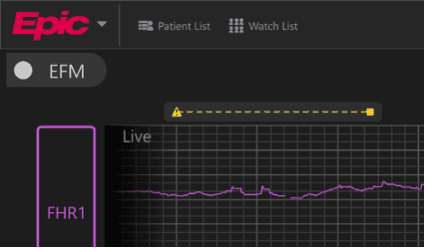
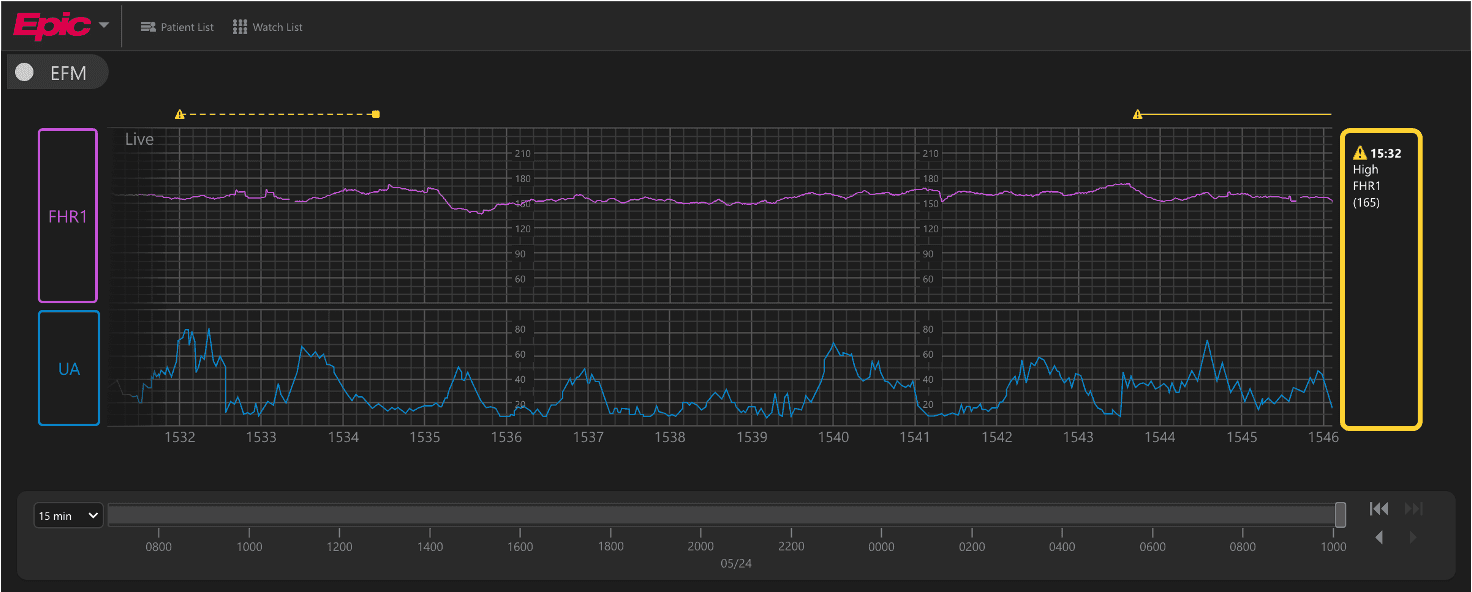
EFM, or electronic fetal monitoring, is used by clinicians to monitor important data such as fetal heart rate and uterine contractions during labor. Epic has not yet released their EFM software, but here is what its current interface looks like.
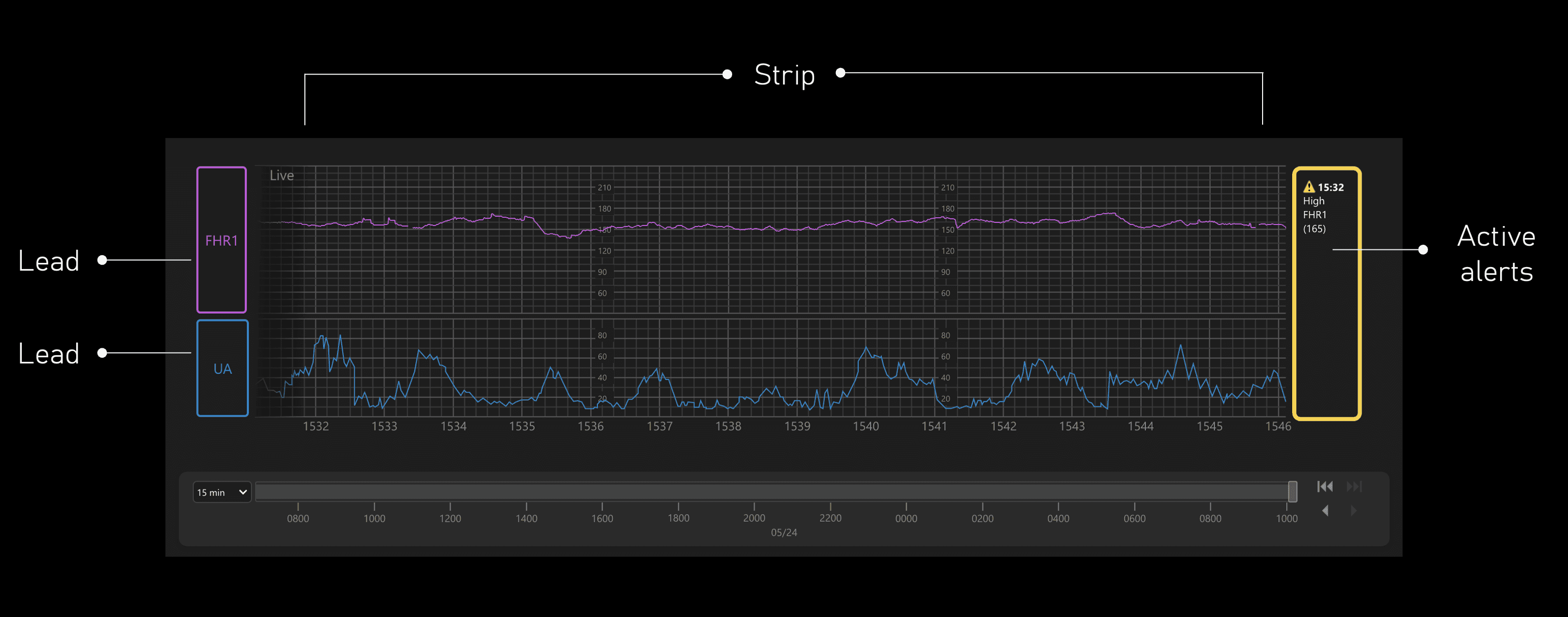
Active alerts
If abnormal data values are detected, they appear in this panel along with more information.
Strip
Where all of the waveforms show up in real time.
Lead
Shows where each waveform’s data comes from.
Ex: FHR1 (in purple along the top of the strip) corresponds to the fetal heart rate and UA (in blue along the bottom of the strip) corresponds to uterine activity, or contractions.
What are alerts?
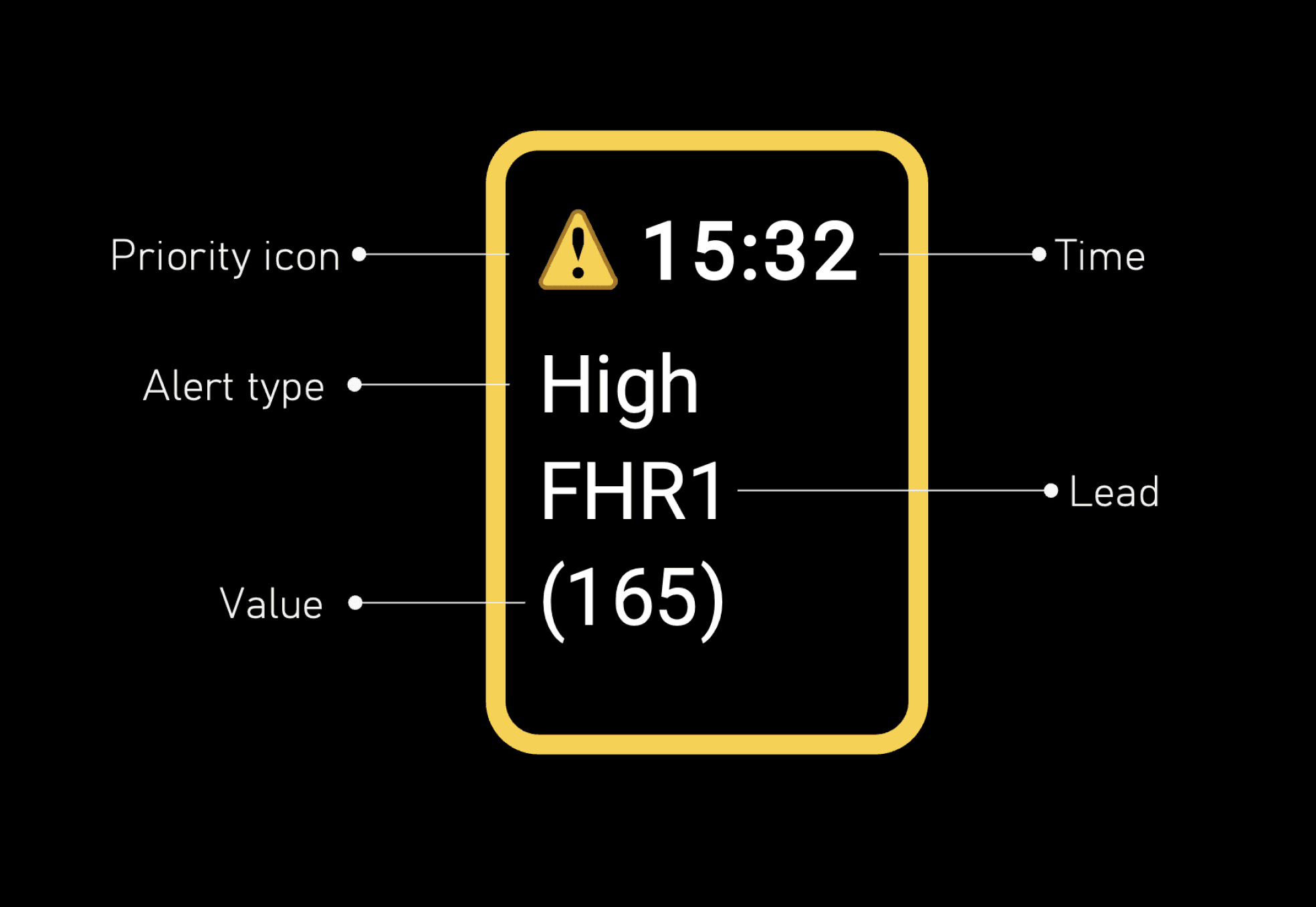
Alerts are events that are abnormal during labor.
They are flagged by a medical device and sent to Epic’s EFM software with the following information:
Priority
Time
Description
Lead
Value
Alerts are configurable by Epic customers in order to comply with FDA regulations, and they can range from things like an unusually high fetal heart rate to a lead being detached.
Who are the users?
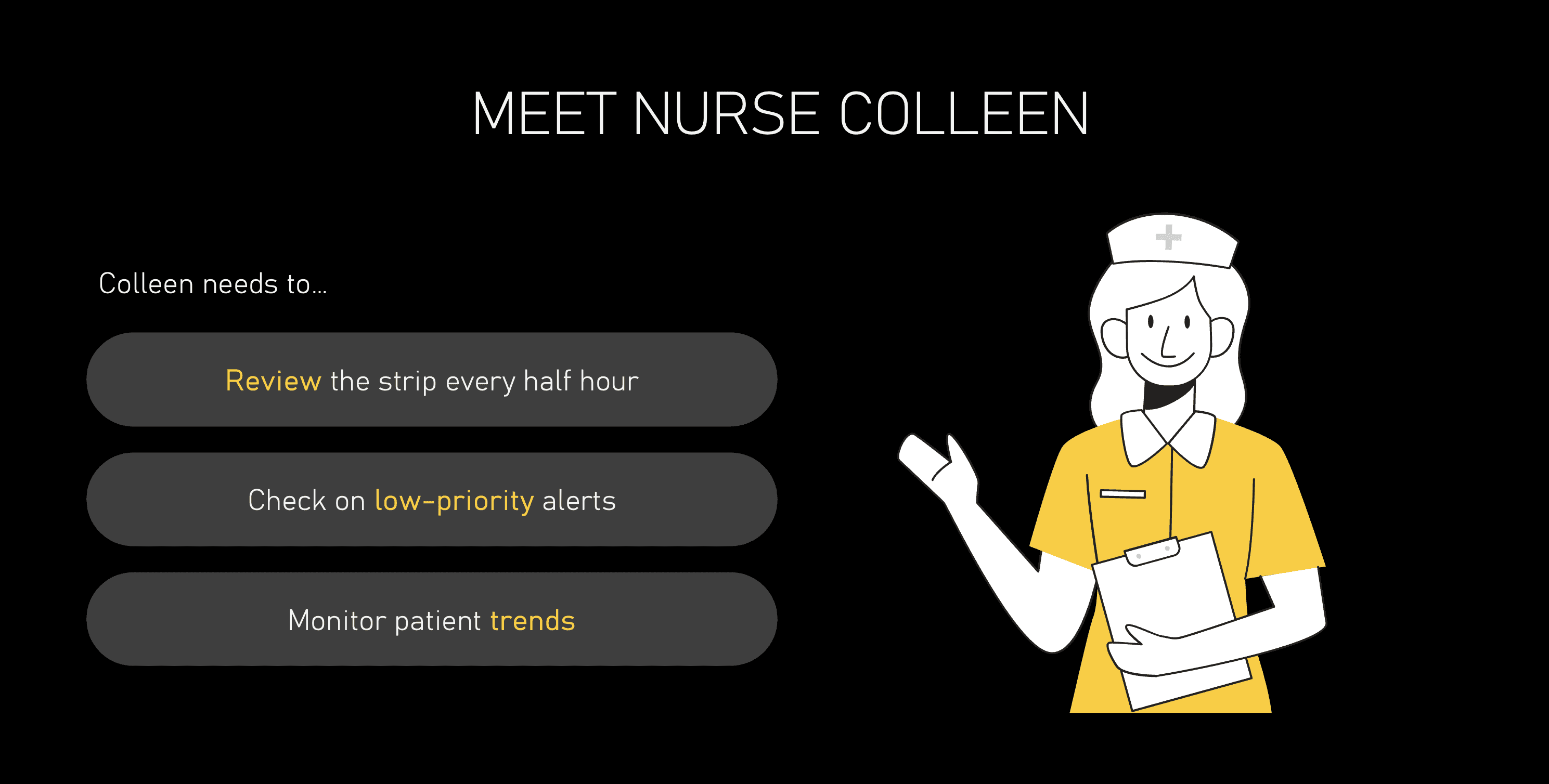
The EFM strip is typically monitored by labor & delivery nurses. According to medical guidelines, they are required to review the EFM strip every 30 minutes for each of their patients.

Here are some typical use cases for these users:
Checking on low-priority alerts that may have been overshadowed by higher-priority alerts when they occurred.
Monitoring patient trends for documentation in Hyperspace.
Problem Statement
Clinicians need a way to view historical alerts in relation to the strip in order to review the progression of labor more easily.
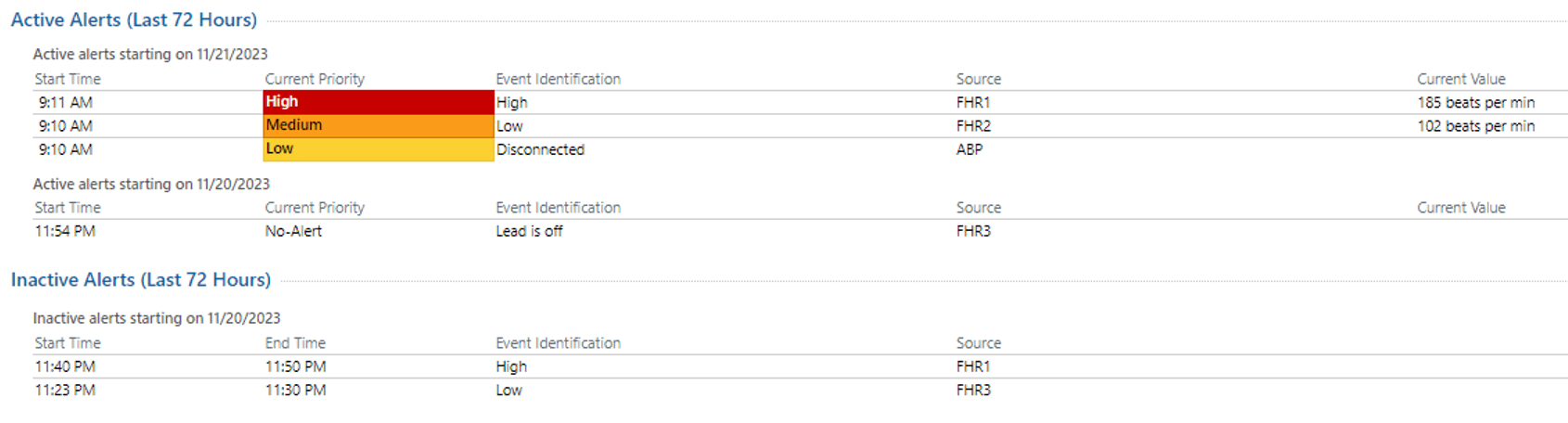
Right now, clinicians can only view historical alerts on Hyperspace (their electronic health record system), so it is difficult for them to visually understand trends and cause/effect relationships within the data.
Research
1
Background Research
I began the research process by reviewing past research that had already been done for the EFM project as a whole. Here were the main insights that influenced this project:
Need to allow users to revisit lower priority alerts
Users must document every 0.5 hours
Need to show alerts in context to understand trends
2
Analogous Research
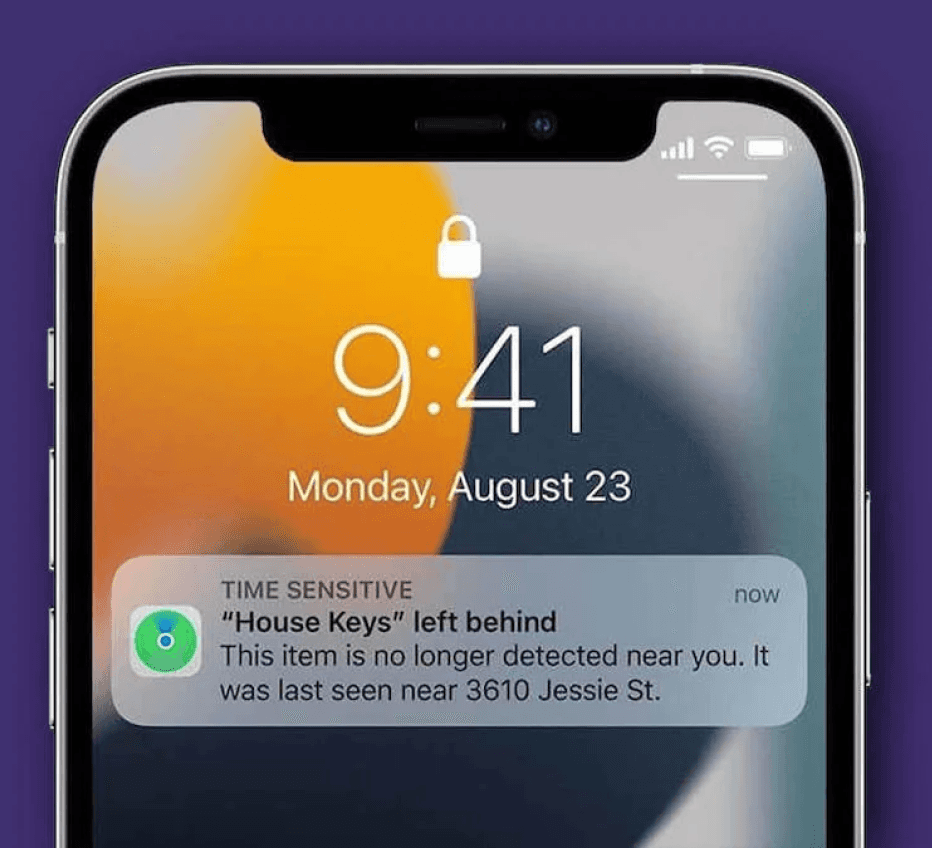
I looked at alerts within other contexts such to come up with some design inspo that feels familiar to users -- later on, this would help us make sure that our design for historical alerts could easily be understood by users.
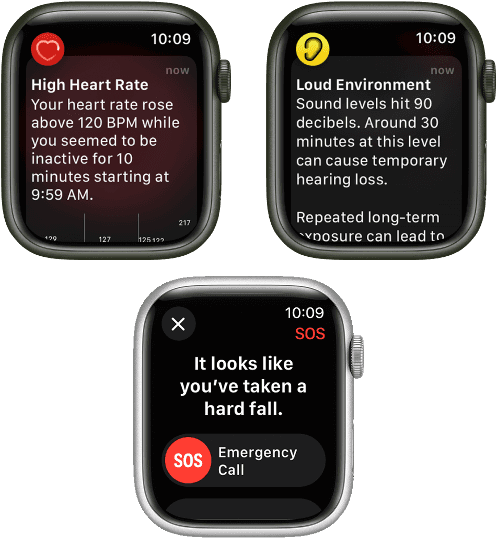
On Apple Watch, an icon, a bolded title, and a short description of health-related alerts are included to help users quickly understand what is going on at a glance.
Time sensitive notifications on iOS pin important notifications to the top of the Notification Center, allowing users to quickly find out what important information they missed.
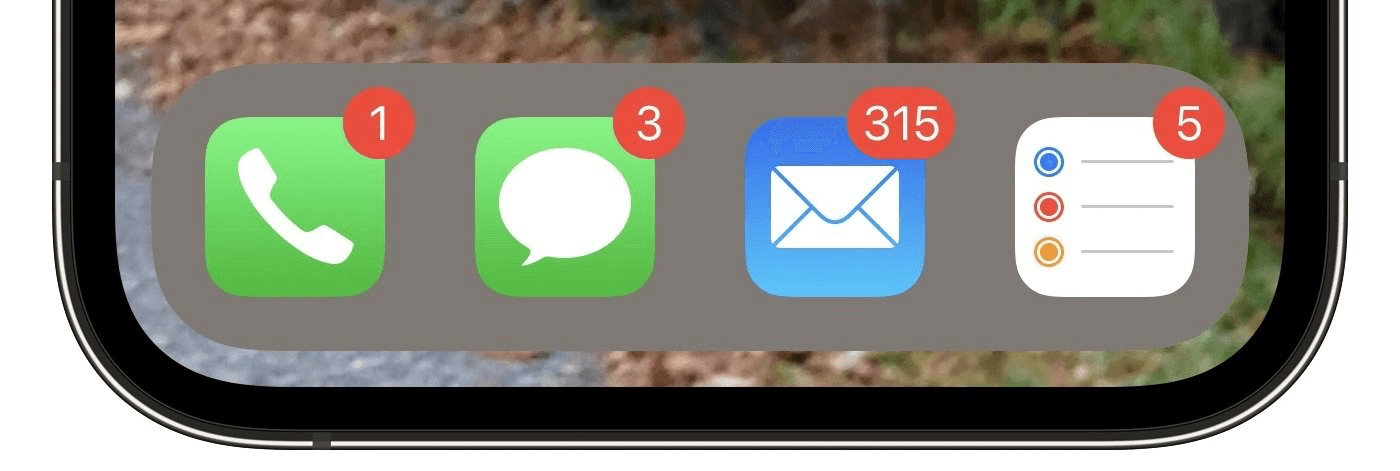
Badges are commonly used to draw users’ attention to unread notifications.
3
User Persona
Going forward in the design process, we kept our persona -- Nurse Colleen -- and her needs in mind.
Goal:
Keep track of her patients’ contractions and identify if her patients’ babies are responding well to them so that she can take action if needed
Frustrations:
Monitors many patients at once and needs to prioritize her actions while making sure that she documents her patients’ activity frequently
Design
1
Design sprint
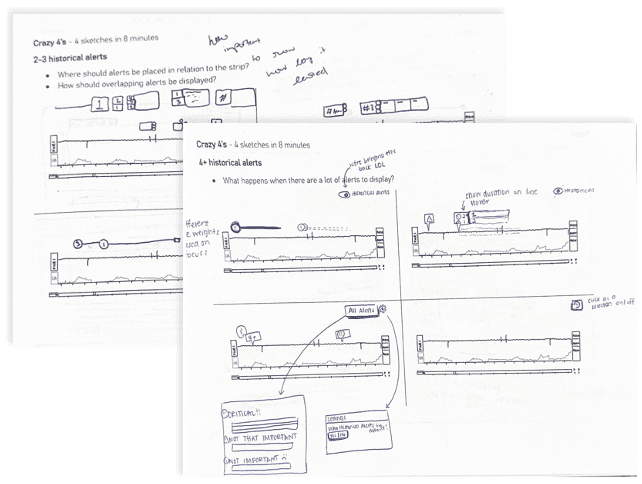
To kick off the design phase of this project, I held a 2-hour design sprint with the rest of the project team to rapidly generate lots of ideas to solve the problem.
We discussed three main cases for the design:
What should 1 alert look like?
What about 2-3 alerts?
How would the design scale to accommodate lots more alerts, potentially with the same start time?
During this design sprint, I made note of all the ideas that my teammates came up with and I also began to prioritize the most promising ideas by splitting them into two categories: “must do” and “maybe do.”
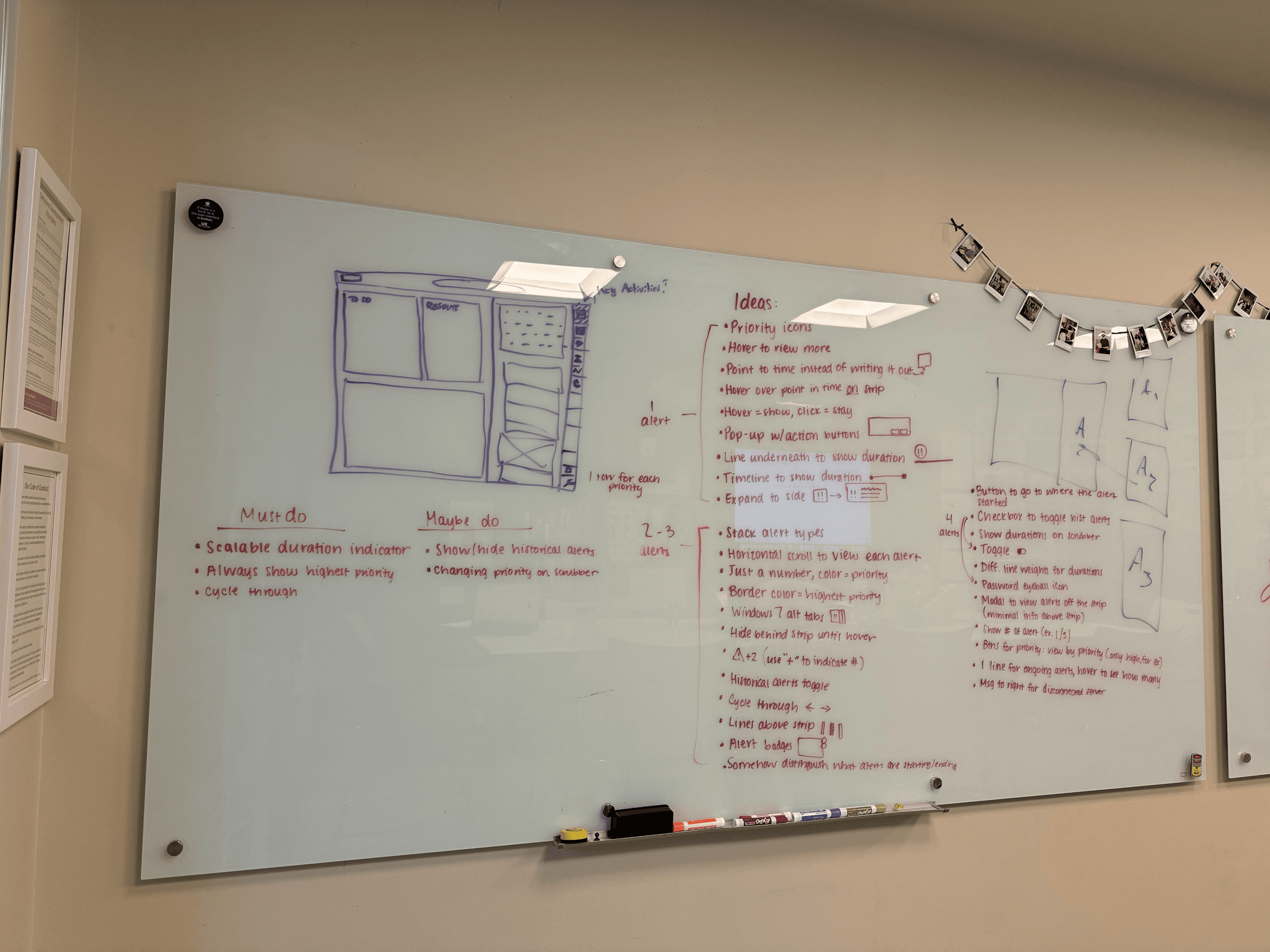
Here are the main takeaways from the design sprint:
Must do:
Scalable duration indicator
Always show highest priority
Cycle through alerts by using buttons or a scrollbar
Expand to side
Maybe do:
Show/hide historical alerts section
Changing priority on the scrubber
Filter/jump to next priority
Jump to where alert started
2
What should one historical alert look like?
For one alert that does not have the same start time as any other alert, we decided to include the following:
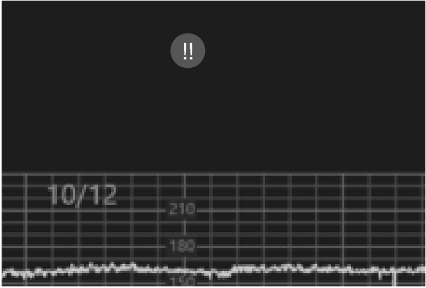
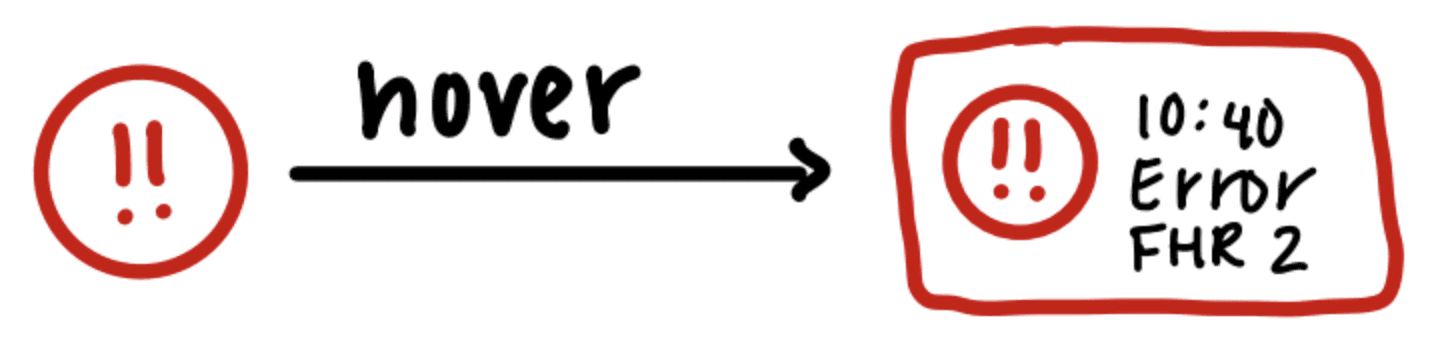
Semantic priority icons to allow users to quickly determine priority at a glance.
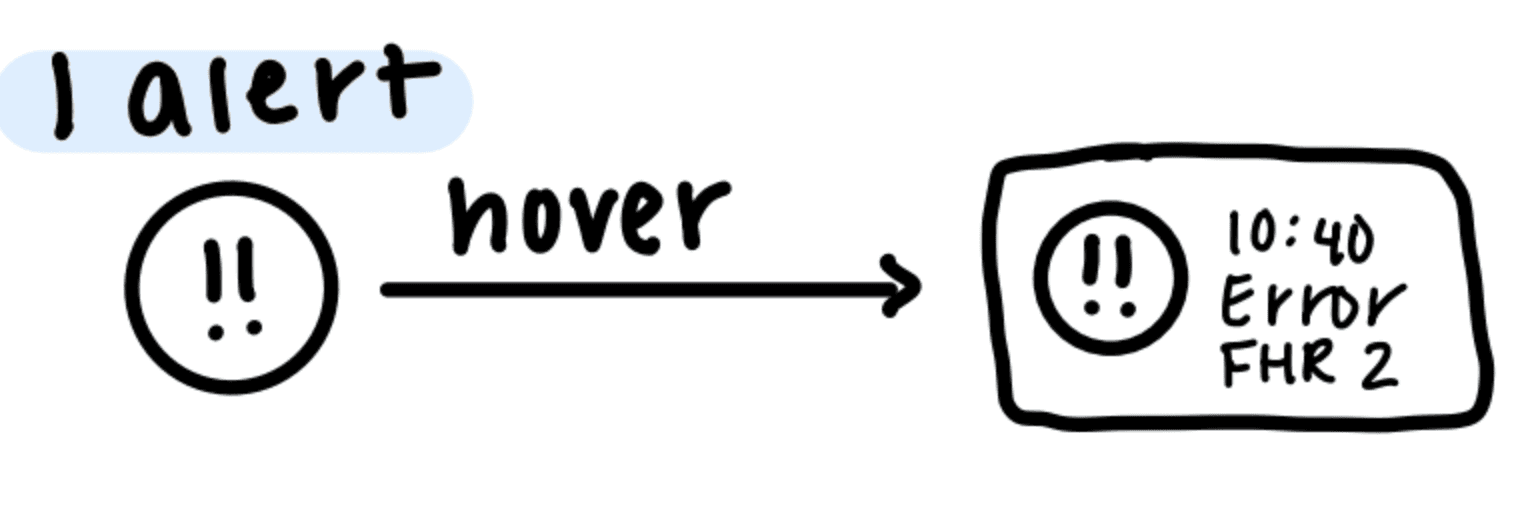
Ability to expand sideways to make use of the limited space above the strip.
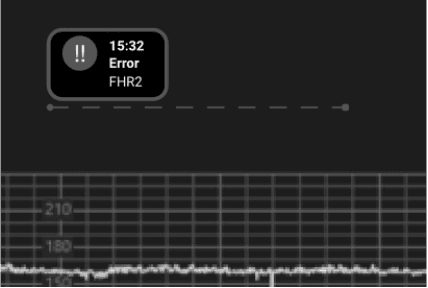
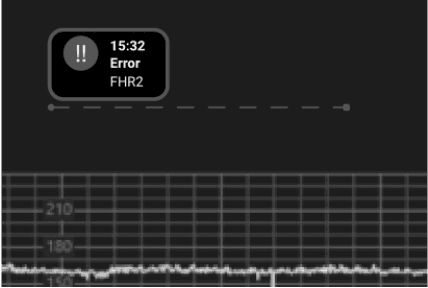
Lines to indicate duration.
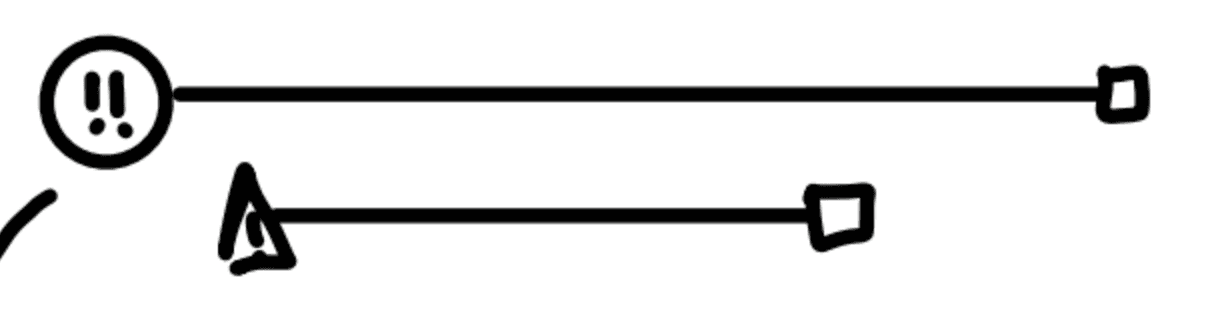
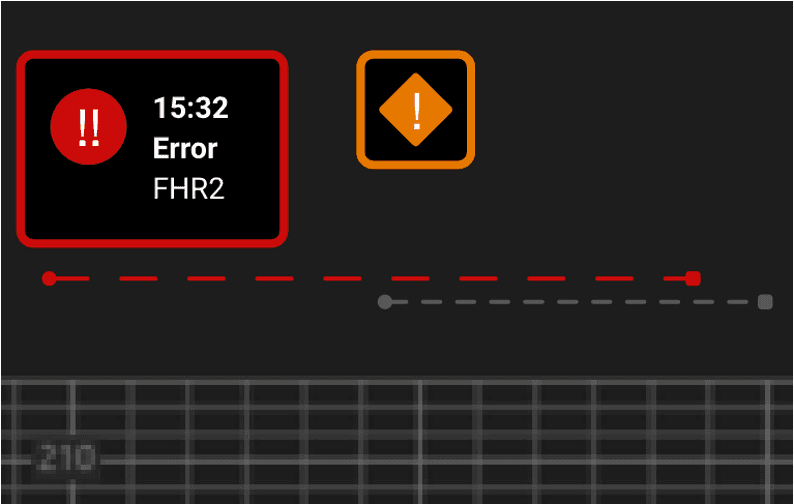
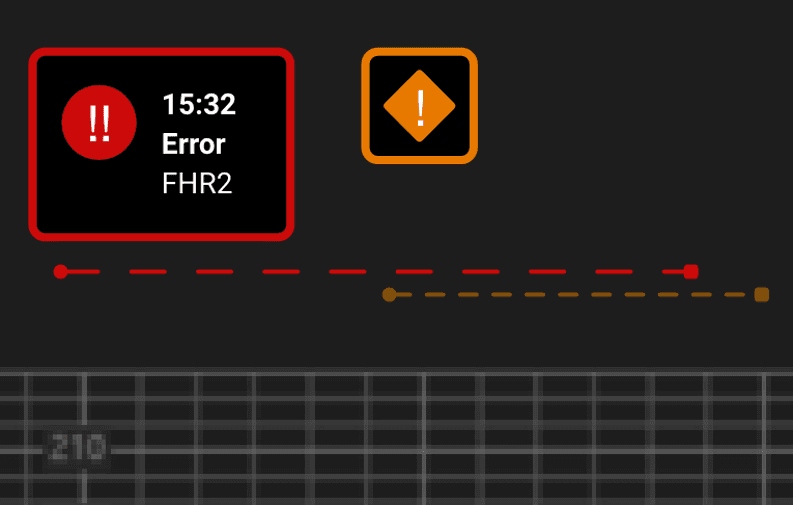
One challenge I ran into is figuring out how to display alert information with its duration.
My first idea was to highlight the duration of a selected alert and leave the others in grayscale until they were selected.
My second idea was to leave everything in color.
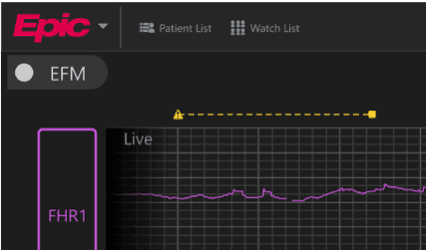
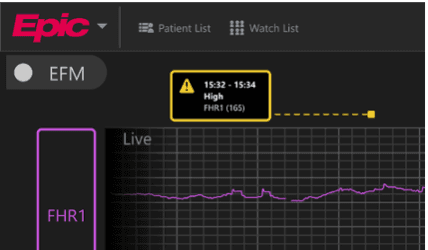
I was lucky enough to participate in design incubators at Epic, and I received some amazing feedback from a full-time UX designer during an incubator that changed the entire direction of my design -- and that feedback was to combine the alert icons with their duration lines.
I also started putting the alerts’ end times in their expanded state so that users don’t have to always reference the strip timestamps to figure out when an alert ended.
Before interacting
On click
On hover
I also played around with different alert styles.
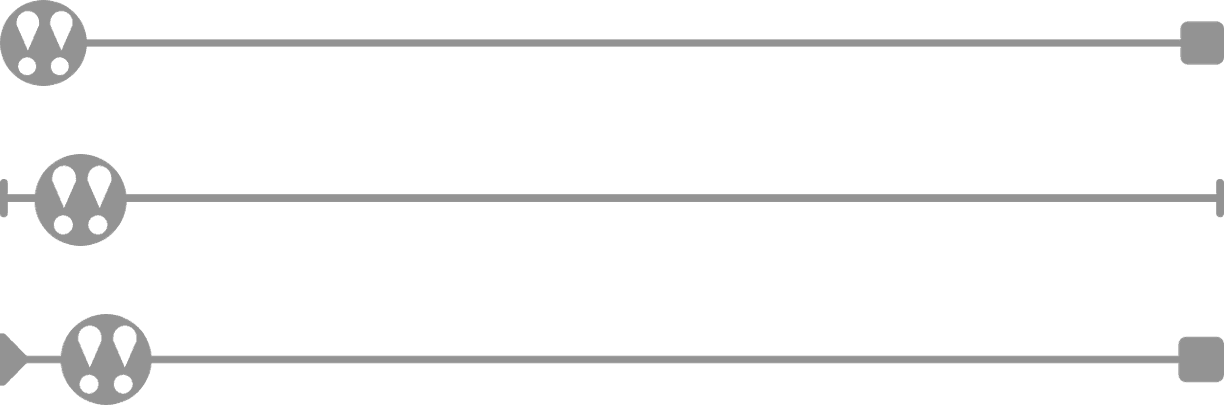
I got some feedback that our alert style might not be that precise when it comes to indicating start and end times above the strip.
However, we ended up sticking with our original alert style (the one on top) because the other two seemed to cause a bit of confusion about when the alert actually started. Some people thought the alert started at the beginning of the line whereas others thought some other type of event started at the beginning of the line and the actual alert started at the point marked by the icon.
We also decided to show active alerts above the strip with a solid line and show inactive alerts with a dashed line.
3
How should multiple historical alerts be displayed?
In particular, I wanted to address the case when multiple alerts had the same start time. When this is the case, we decided to do the following:
Stack alerts and indicate the number of alerts in each stack.
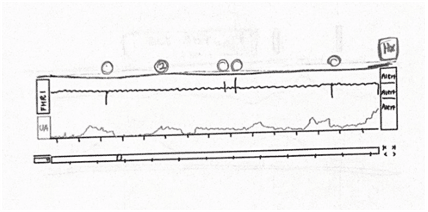
Allow users to easily cycle through alerts.
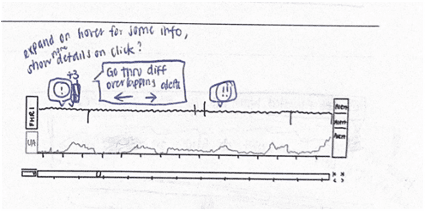
But again, I ran into the same challenge of figuring out how durations could show up (at the time, I was still handling alerts and durations separately).
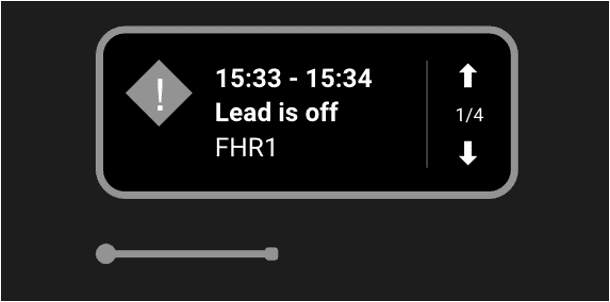
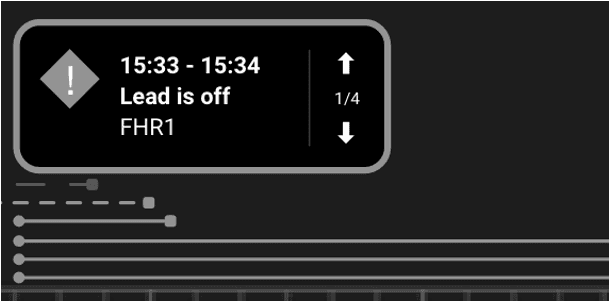
To address this, I considered only showing the duration of the selected alert when cycling through stacked alerts because showing all durations was very visually overstimulating, as you can see on the right.
1 duration:
All durations:
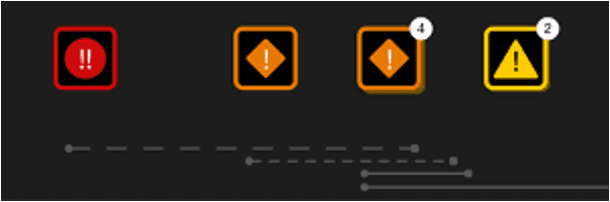
Another challenge that we were running into is that the number badges to indicate the number of alerts in a stack were extremely small, and it was difficult to see them on the large monitors that are typically used.
Before interacting:
On click:
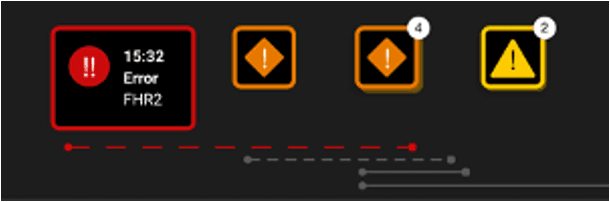
After combining alerts with their durations, this is what my initial design for multiple alerts looked like:
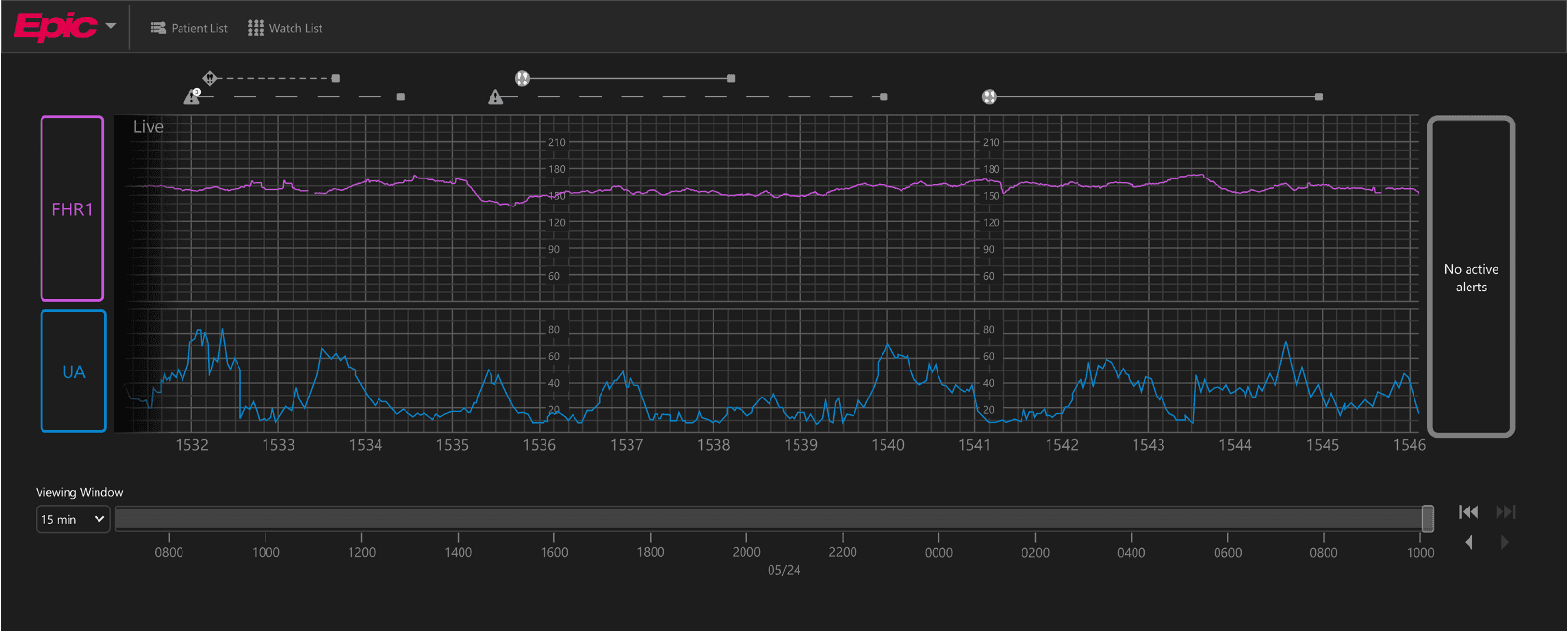
We were worried about making the historical alerts more visually prominent (thus indicating more importance) than the active alerts or the tracings, so we switched to keeping historical alerts in grayscale until the user hovers over one.
However, at a brain trust (a gathering of healthcare professionals who give feedback on Epic’s software), we learned a few important things:
Users want to be able to see priority colors at all times.
Users are unsure how to interact with stacked alerts.
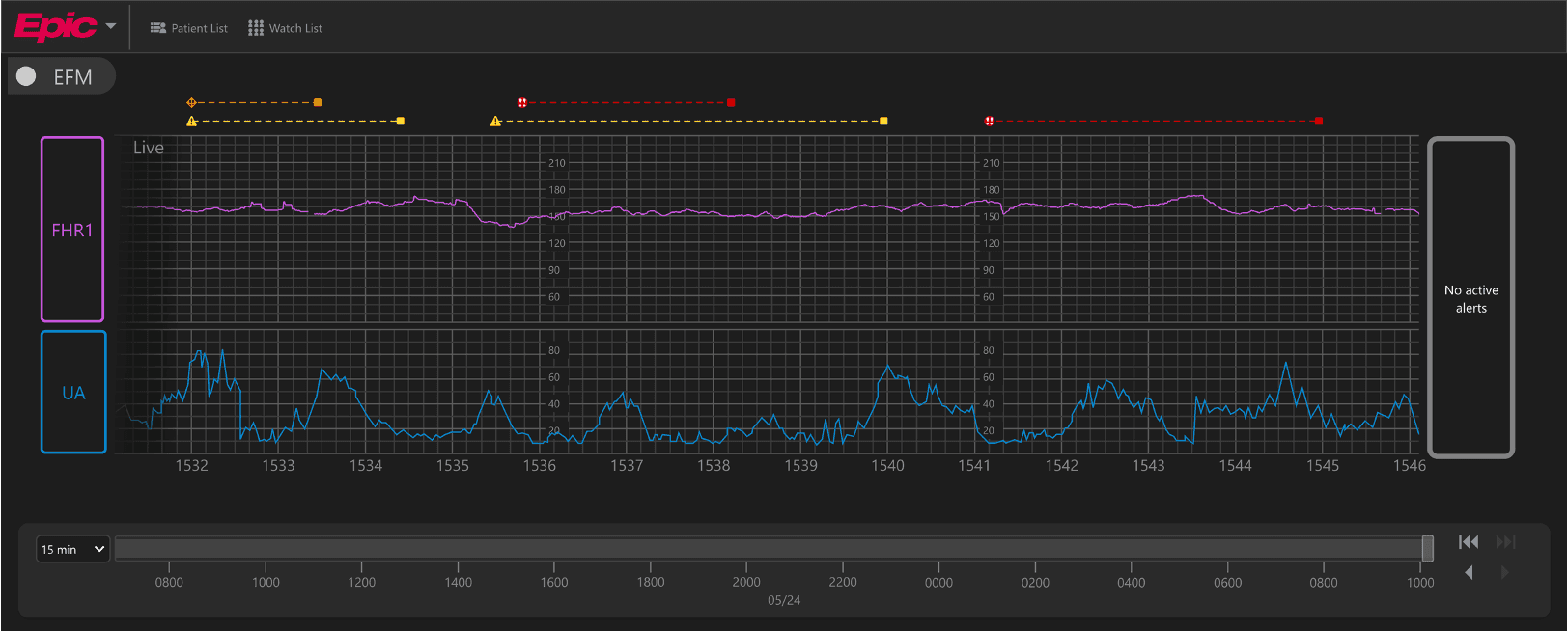
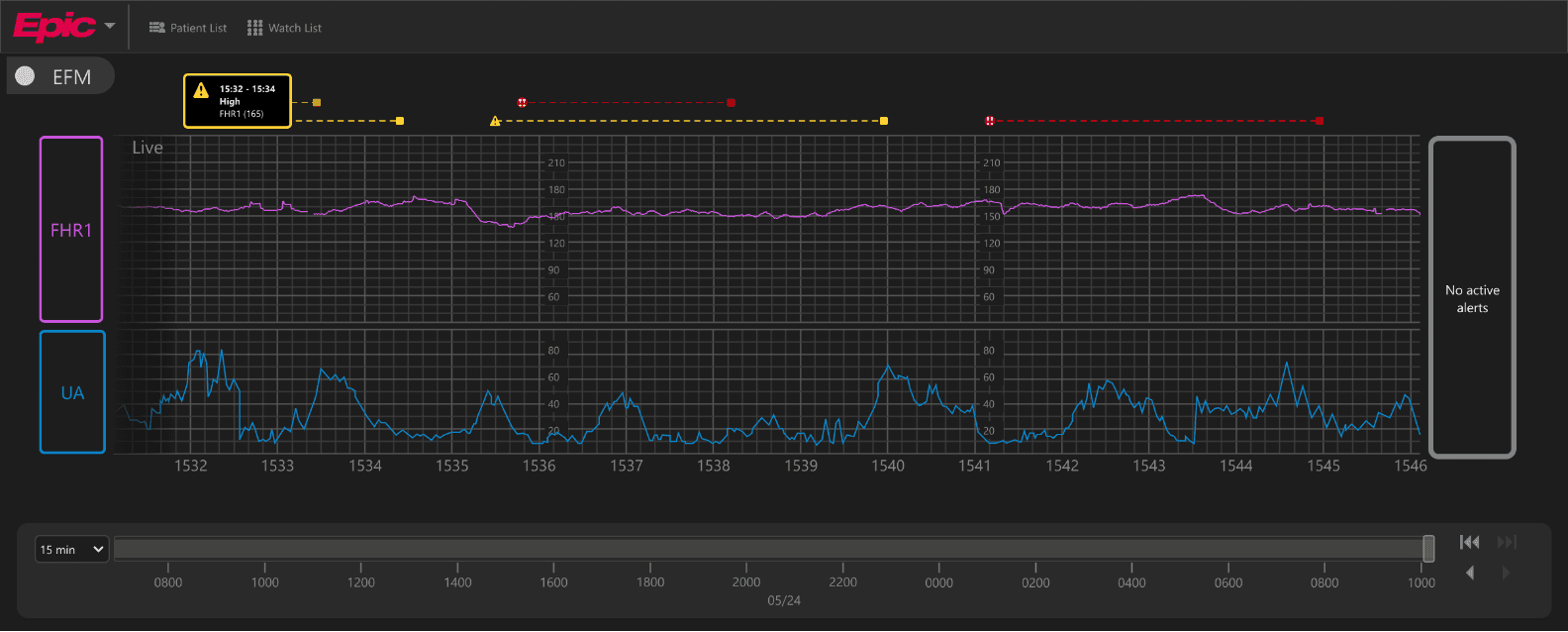
So now, if multiple alerts have the same start time, they will simply appear left-aligned.
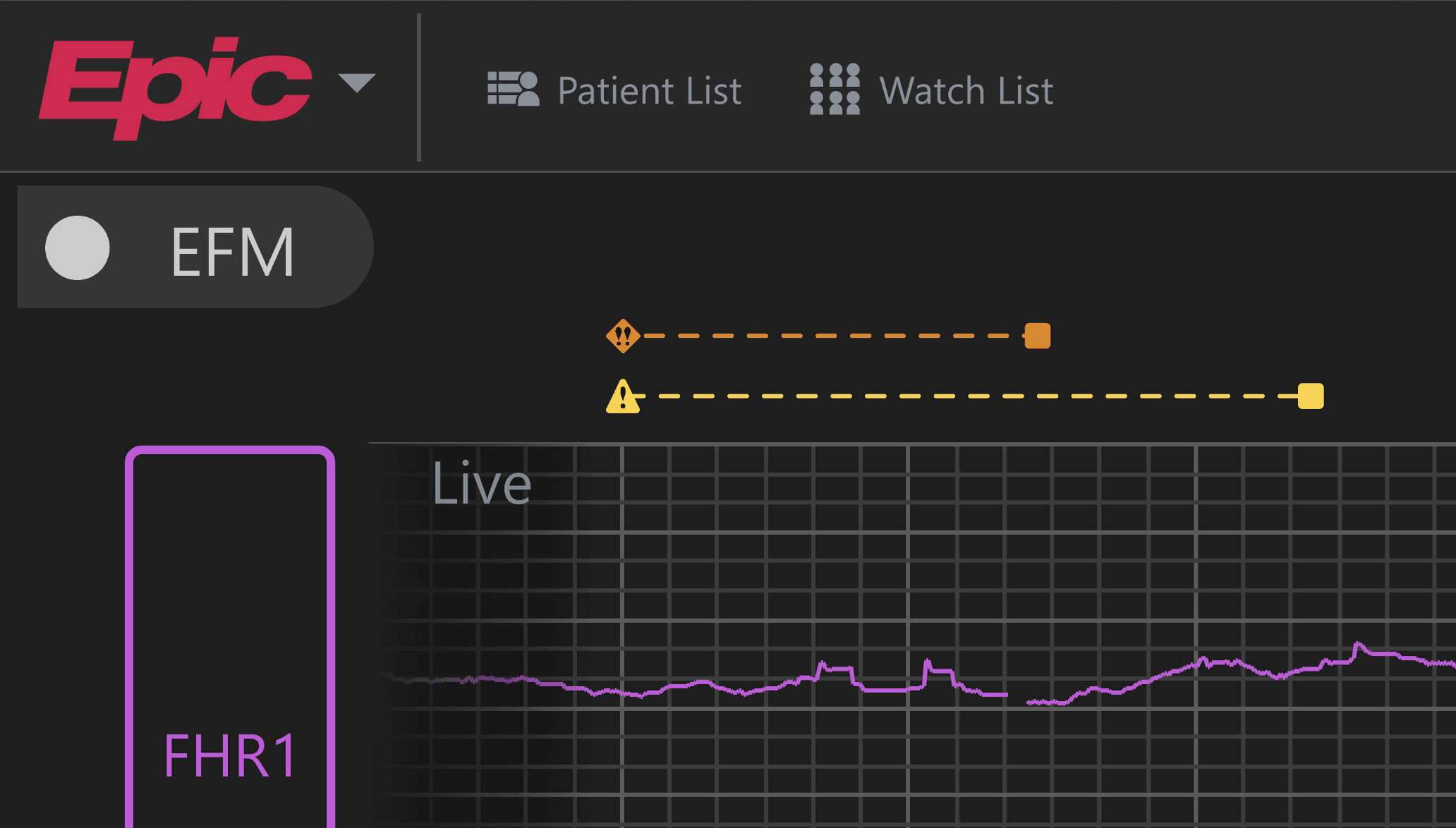
And this is what the alert’s expanded state looks like.
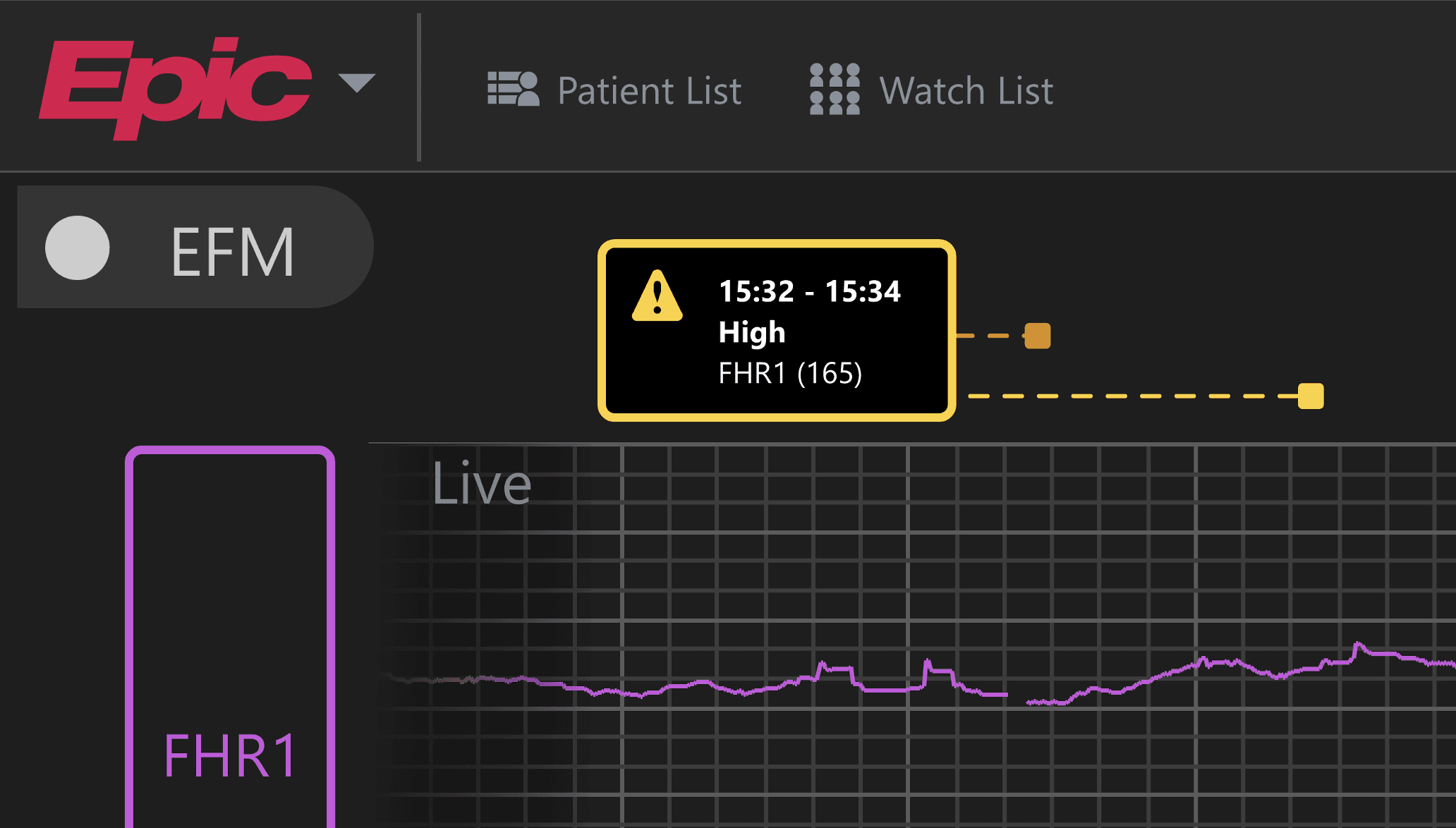
Overall, this design is much more straightforward and requires less of a learning curve when trying to figure out how many alerts occurred in a particular viewing window.
4
Considering edge cases
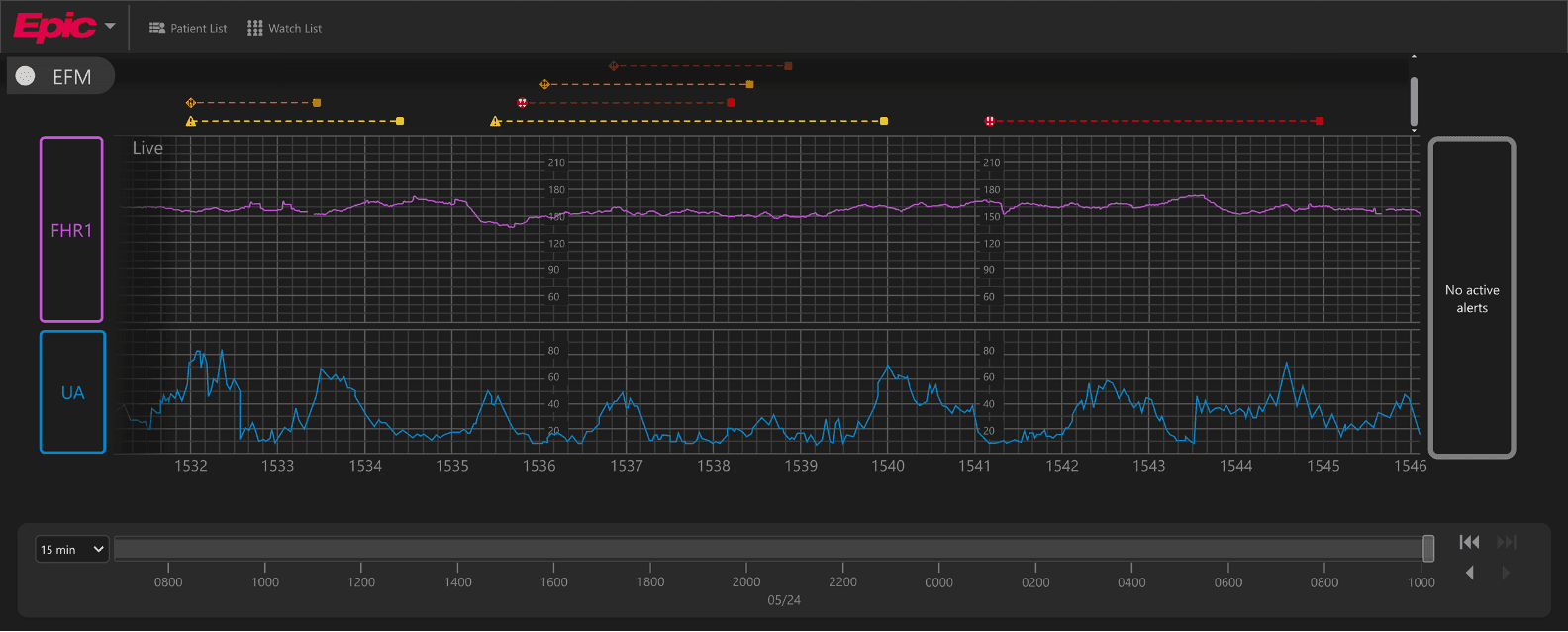
We also began to consider edge cases where there would be numerous alerts that got staggered above the strip, and we decided that it would be beneficial to include a scrollbar.
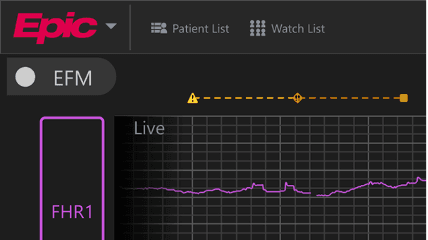
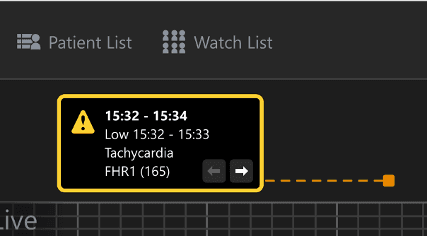
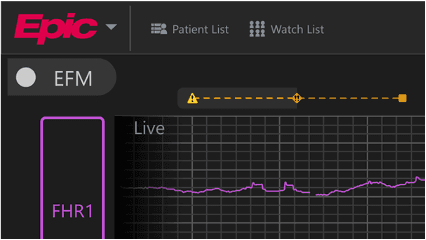
Another edge case we considered is how to display an alert that changes priority during its duration.
We decided to show priority changes like this and allow users to click on each priority separately. We also brought in arrow buttons to allow users to easily jump to the next priority of an alert.
Before interacting
On click
On hover
Future Vision
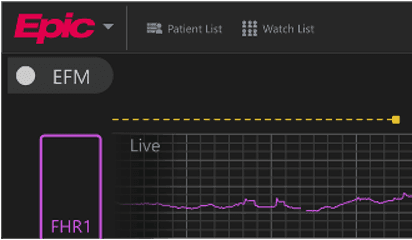
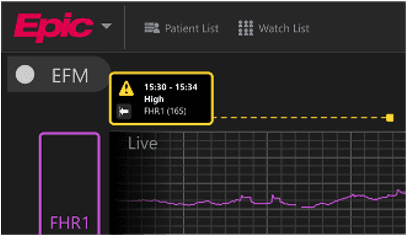
One case we considered is when an alert starts off screen.
We still want to allow users to be able to click on these alerts in their current viewing window, but we also want to allow users to click on a button to quickly jump to a viewing window that shows the beginning of the alert.
Before interacting
On click
On hover
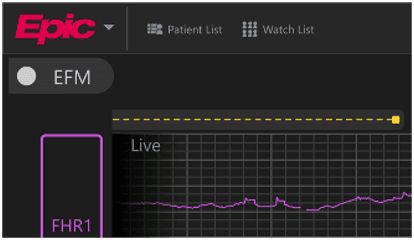
We also wanted to allow users to jump to the previous or next historical alert outside of their current viewing window in order to review the strip more easily.
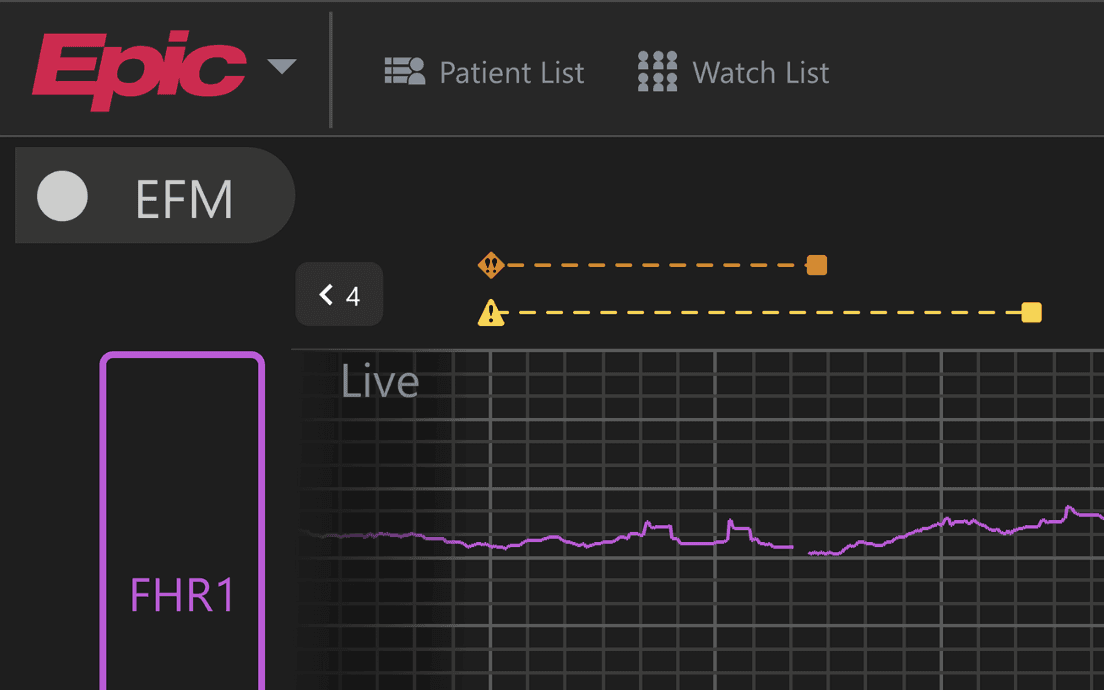
To address this, we added a button that shows the number of alerts to the left or to the right of the user’s current viewing window. Clicking on this button would jump the user to the viewing window that contains the start of the previous alert.
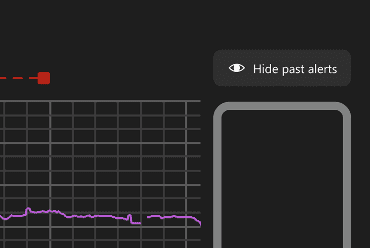
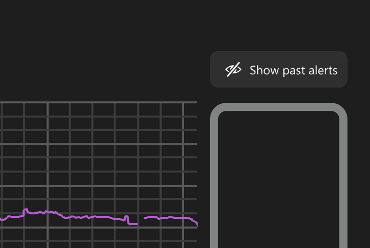
We also wanted to allow users to show and hide all historical alerts if they only want to focus on active alerts and the strip.
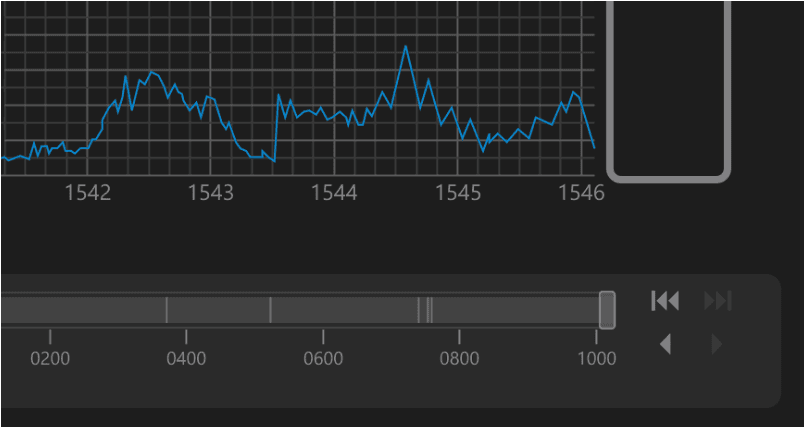
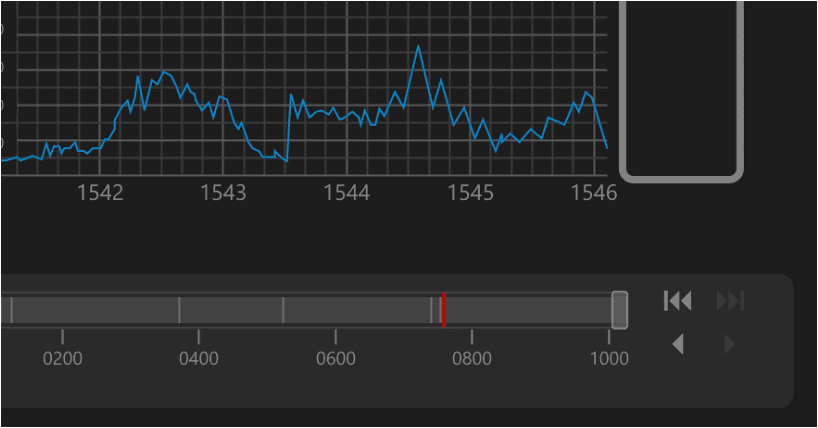
Lastly, I placed grayscale lines on the scrubber to indicate the presence of historical alerts. On hover, users can see their semantic priority color, and they can also click on these lines to review the historical alerts that they correspond to.
Impact
Incorporated feedback from healthcare providers at every stage of the design process.
By doing so, we were able to ensure that the final design could easily be used by labor & delivery nurses in hospitals.
95% of providers surveyed at our Brain Trust approved of the design.
Of the 5% who had objections, we were able to keep their feedback in mind for future iterations of the feature.
My software development intern pair, Rachel, was able to get this feature ready for testing by the end of the summer.
By involving her and the rest of the software developers on the project team in all stages of the design, I was able to design a feasible solution.